

In this tutorial we are going to create a princess in a fantasy world, standing in a royal garden. With this tutorial we will be covering some interesting methods of cutting an image with complex and tiny gaps, discussing the nature of the elements in the scene to provide a natural depth to the scene, and working on the lighting and Depth of Field principles.
Preview of Final Results
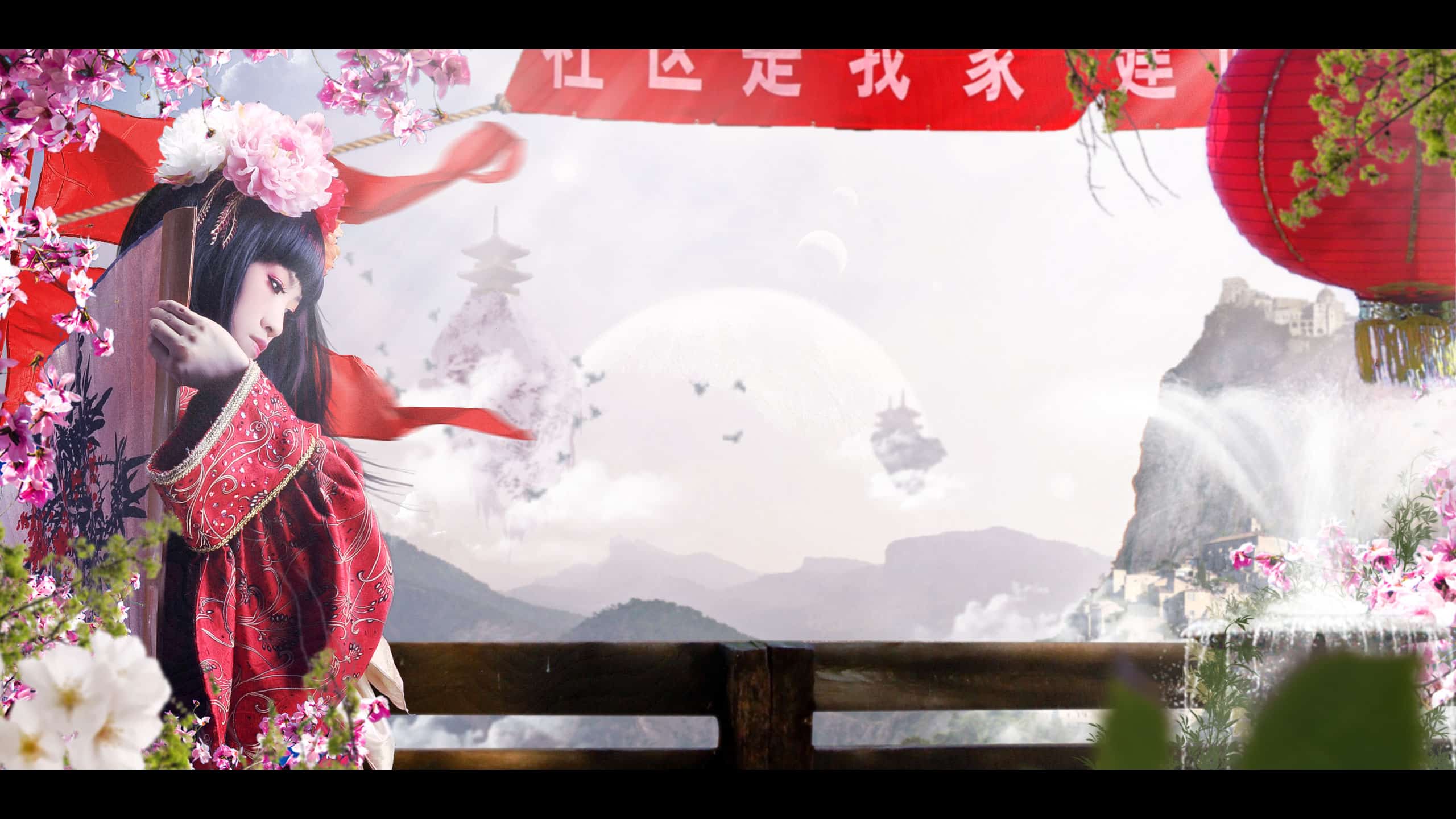
Wallpaper of Japan Photoshop Tutorial
Tutorial resources
- ScenerySXC.huGet file: Scenery (opens in a new tab)
- PrincessaprilsheepstockGet file: Princess (opens in a new tab)
- Wooden RailingSXC.huGet file: Wooden Railing (opens in a new tab)
- Chinese LanternchamberstockGet file: Chinese Lantern (opens in a new tab)
- Magnolia PlantSXC.huGet file: Magnolia Plant (opens in a new tab)
- Birds BrushAboutTheBirdsGet file: Birds Brush (opens in a new tab)
- FlagsSXC.huGet file: Flags (opens in a new tab)
- Planets BrushSuniraGet file: Planets Brush (opens in a new tab)
Show 19 more files
- Green Leafchop-stockGet file: Green Leaf (opens in a new tab)
- Sunrays BrushpelleronGet file: Sunrays Brush (opens in a new tab)
- Clouds 1JavierZhXGet file: Clouds 1 (opens in a new tab)
- Clouds 2RoseCabrioletGet file: Clouds 2 (opens in a new tab)
- CitySXC.huGet file: City (opens in a new tab)
- PalaceSXC.huGet file: Palace (opens in a new tab)
- Green PlantSXC.huGet file: Green Plant (opens in a new tab)
- Hair BrushqueenofladiestoiletsGet file: Hair Brush (opens in a new tab)
- Mountain 1SXC.huGet file: Mountain 1 (opens in a new tab)
- Mountain 2SXC.huGet file: Mountain 2 (opens in a new tab)
- White BlossomsSXC.huGet file: White Blossoms (opens in a new tab)
- FountainSXC.huGet file: Fountain (opens in a new tab)
- Fountain Water Brush 1123freebrushesGet file: Fountain Water Brush 1 (opens in a new tab)
- Fountain Water Brush 2Stock-galleryGet file: Fountain Water Brush 2 (opens in a new tab)
- Fountain Water Brush 3redheadstockGet file: Fountain Water Brush 3 (opens in a new tab)
- Plants BrushesFalln-StockGet file: Plants Brushes (opens in a new tab)
- TempleSXC.huGet file: Temple (opens in a new tab)
- BannerSXC.huGet file: Banner (opens in a new tab)
- RopeSXC.huGet file: Rope (opens in a new tab)
Step 1
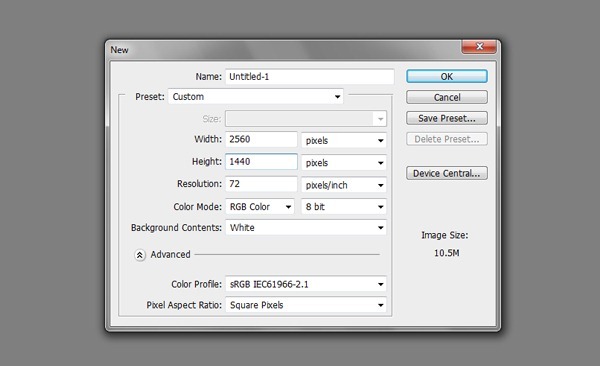
Create a new canvas in Photoshop with the dimensions 2560 x 1440px.
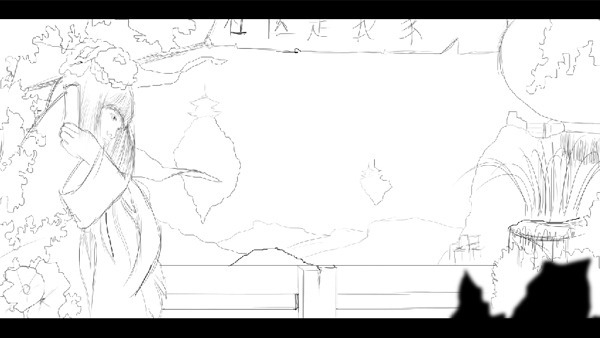
Now draw a rough sketch of the concept that we are going to create.
Step 2
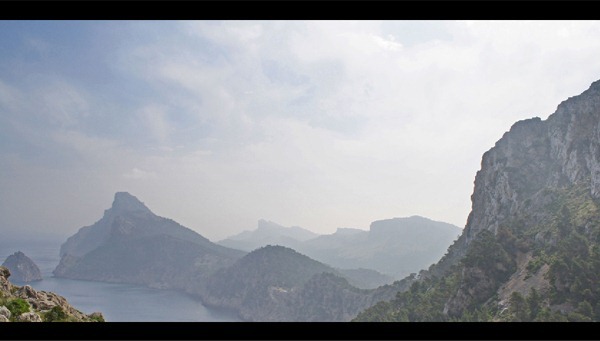
We will start by creating the background of our concept. Import the image of the Scenery with some beautiful hills which match perfectly with our concept on to the canvas.
- ScenerySXC.huGet file: Scenery (opens in a new tab)
Step 3
In this step, we will be using an advanced and very effective method of cutting a complicated image with very small gaps. Import the image of the Magnolia Plant into Photoshop and select the Red Layer from the Channels pallet.
- Magnolia PlantSXC.huGet file: Magnolia Plant (opens in a new tab)
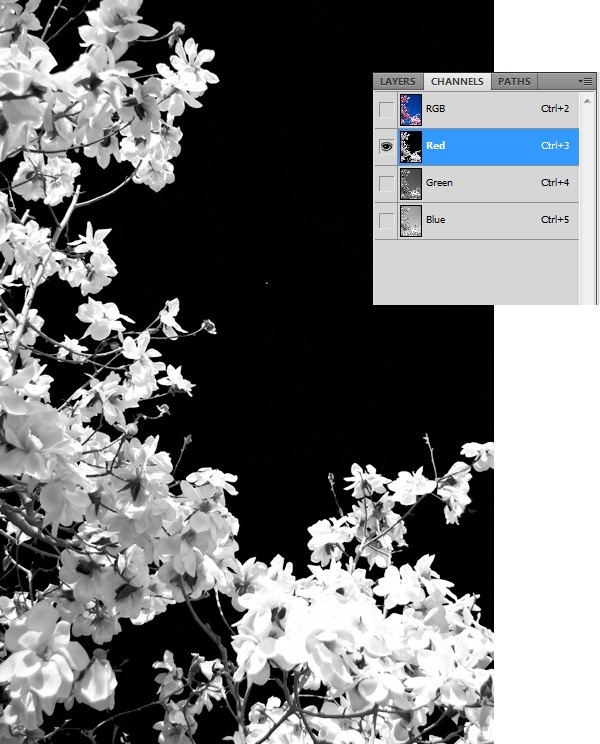
Then go to and select the Red channel in the channels dropdown list.
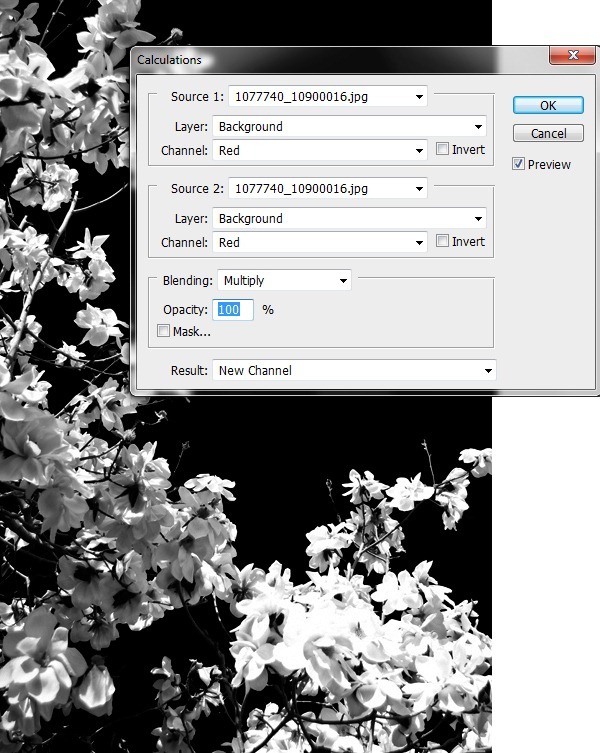
Now make sure that the area that is to be masked is made completely white. Go to and set the levels until a complete contrast is acquired.
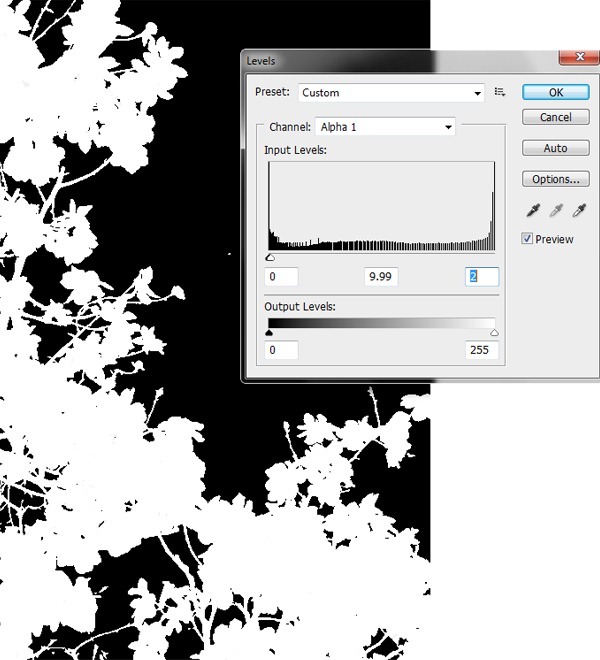
Select the mask that we created from and separate the selection into a new layer by holding Ctrl+J.
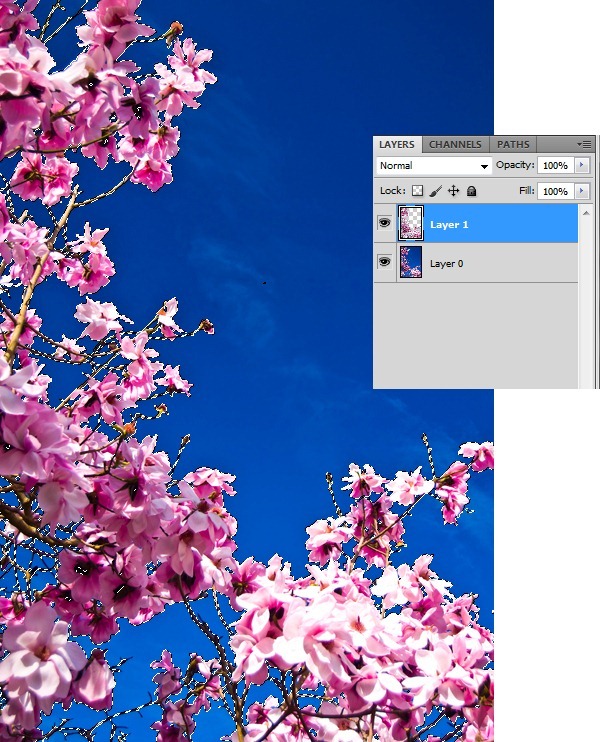
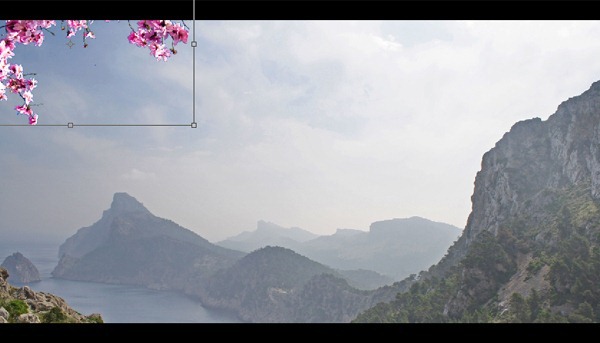
Now import the flowers onto the working canvas and place it on the left corner as shown to represent the plant in the garden.
Step 4
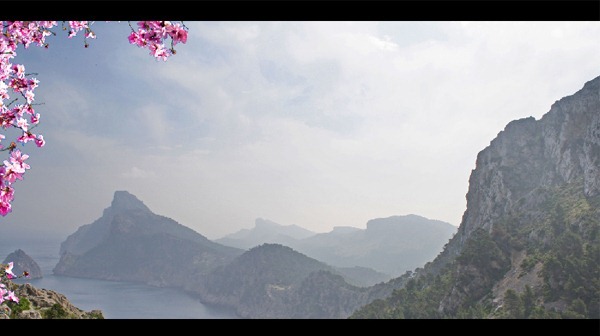
Duplicate the flowers plant layer and place them on the left side of the canvas as shown.
Step 5
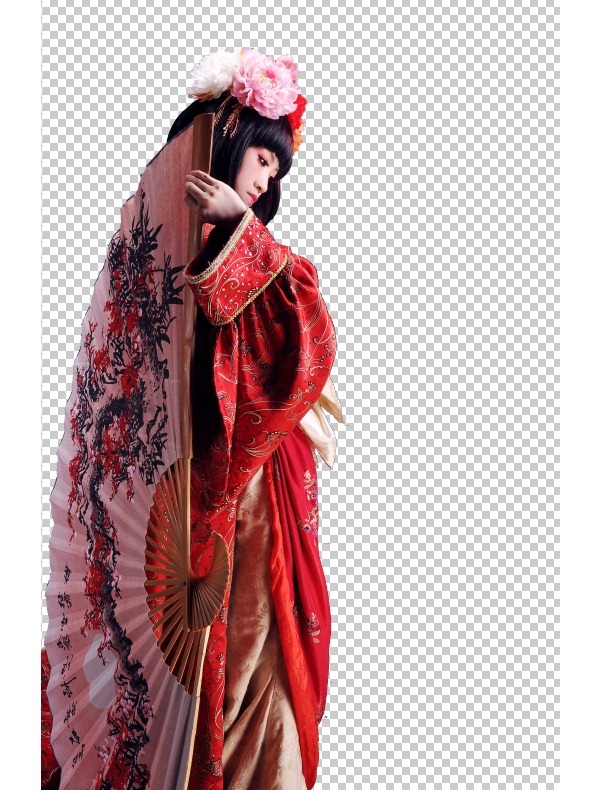
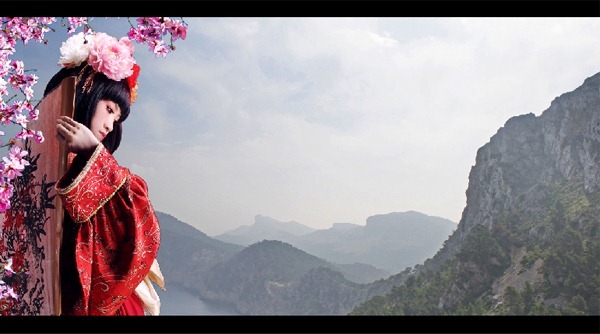
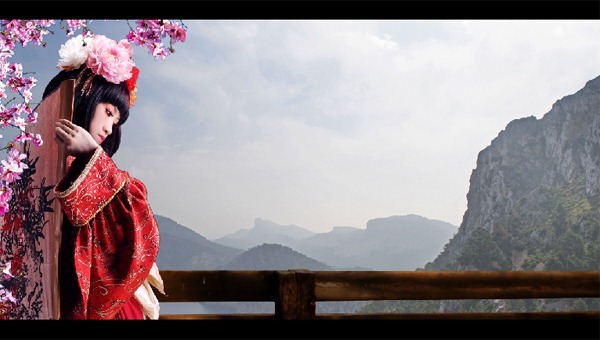
Cut the image of the Princess from its background and import it onto the working canvas and place it as shown.
- PrincessaprilsheepstockGet file: Princess (opens in a new tab)
Step 6
Now we need to create a fence in the garden in order to represent the boundary of the garden located on the hilltop. Mask out the Wooden Fence from the image using the Pen Tool(P).
- Wooden RailingSXC.huGet file: Wooden Railing (opens in a new tab)
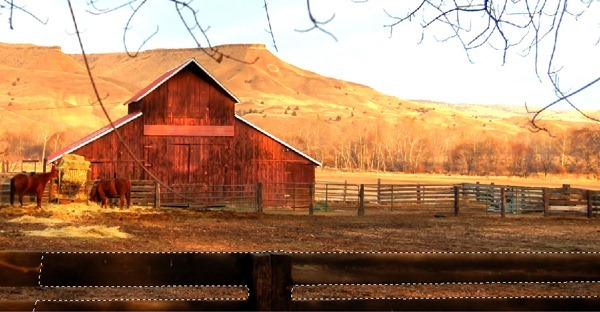
Then import the fence onto the canvas and place it under the princess layer as shown.
Step 7
- CitySXC.huGet file: City (opens in a new tab)
In this step, we will be creating an ancient city located on a distant hill. Cut the image of the City from its sky and place it on the hill as shown. Make sure that the city fits the perspective of the scenery using Transform Tool(V).