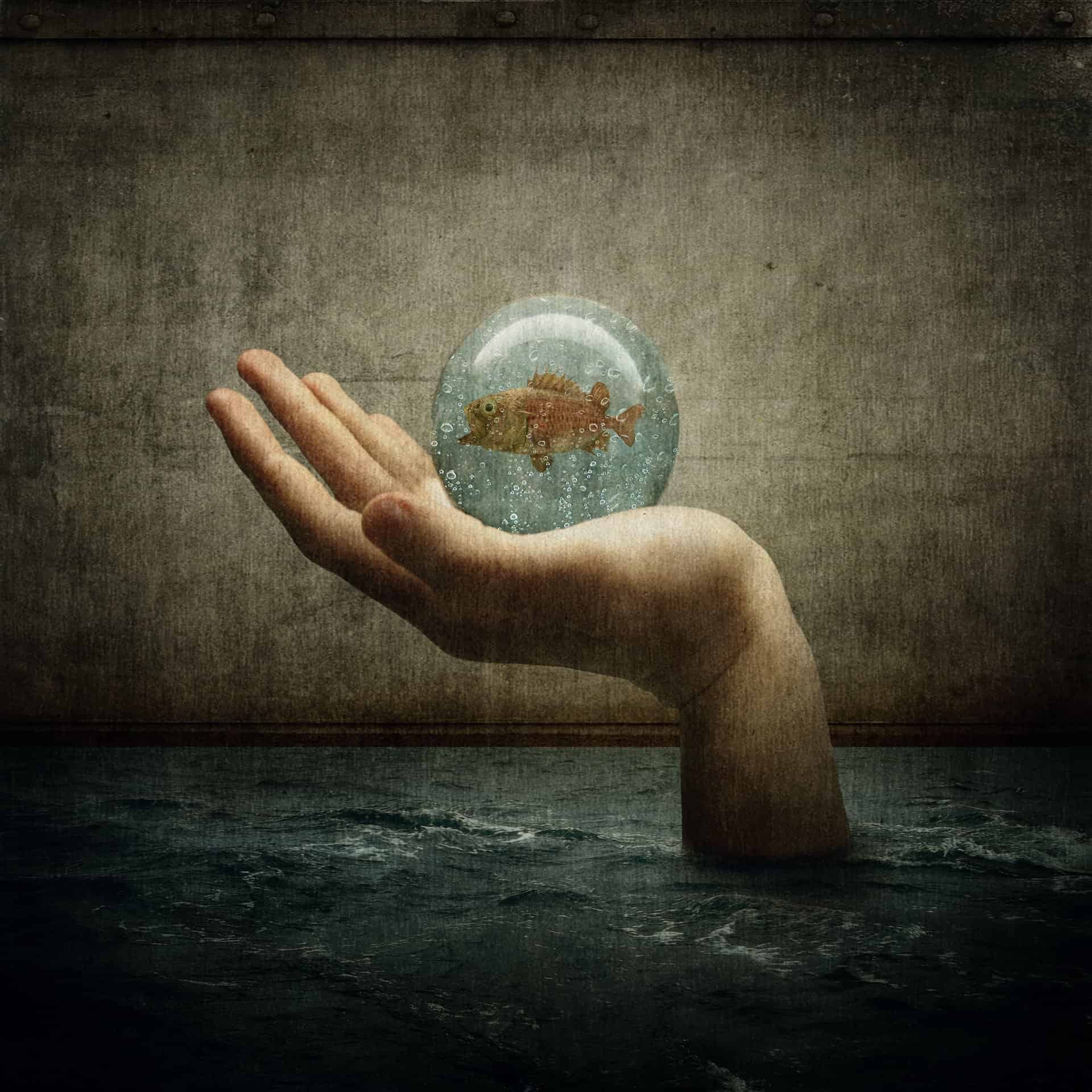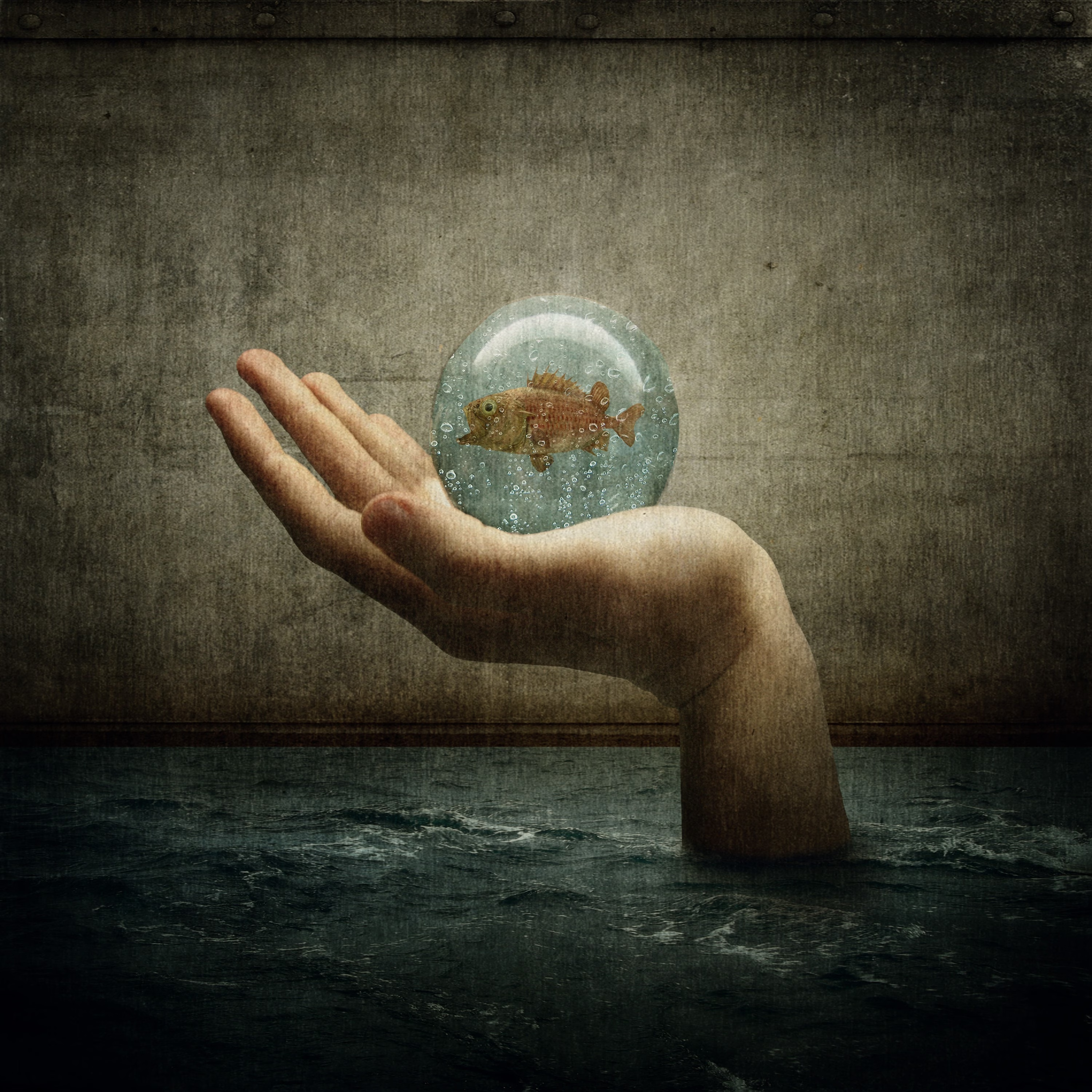
The result:
Click on the “Metal texture 15” layer and duplicate it (Ctrl/Cmd + J). Once duplicated, change the Blending mode and Opacity to the following:
Blending mode: Soft light
Opacity: 100%
Now, the result should be similar to this:
Group these layers (Ctrl/Cmd + G) and rename this group to “Textures”.
Step 8Enhance the Image’s Color
In this step, we will be retouching our image to give it a much more grunge feel. Let’s start by creating a Solid Color adjustment layer which can be found by pressing on the Create New Fill/Adjustment layer button shown on the layer window:
When the Solid Color box opens, input the following:
Then change the Blending mode and Opacity of this layer to the following:
Blending mode: Exclusion
Opacity: 50%
Next, create another Solid Color adjustment layer through the Create New Fill/Adjustment layer button. Once the Solid Color box is open, input the following:
Next, change the following:
Blending mode: Soft Light
Opacity: 40%
Next, let’s create a Gradient Map adjustment layer from the Create New Fill/Adjustment layer button.
When the Gradient Map box is open, do the following:
Now after hitting OK, you’d notice that your image is now a Black and White image but we don’t want that, so what you should do is change the Opacity to the following:
Opacity: 25%
The result:
Next, let’s enhance the color; activate the Create New Fill/Adjustment layer button and then choose: Color Balance.
Once open, input the following:
Color Levels: -15, 0, -9
Tone Balance: Midtones
Preserve Luminosity: Checked
Finally, let’s add a Channel Mixer adjustment layer through the Create New Fill/Adjustment Layer button.
Once open, input the following:
Output Channel: Gray
Source Channels:
Red: +100%
Green: 0%
Blue: 0%
Constant: 0%
Monochrome: Check
Next, change the Blending mode and Opacity of the Channel Mixer adjustment layer to the following:
Thank you for visiting this page and using my tutorial, if you want to see more of my artworks, give me a shout at my website: https://www.wix.com/theflickerees/michaelVmanalo
– Michael Vincent Manalo
All the stock resource links seem to be working on my end. Where are you seeing the link for the water in the ball?
Linda A Perdue
Water on glass 1? https://www.deviantart.com/deadenddoll-stock/gallery/5088128#/dd4c0w …..doesn’t show me an image? unless it is a very dark image that has a diagonal line through the middle – doesn’t seem to have anything and I’m not sure if I am missing something – wanted to start working on your tutorial today.