
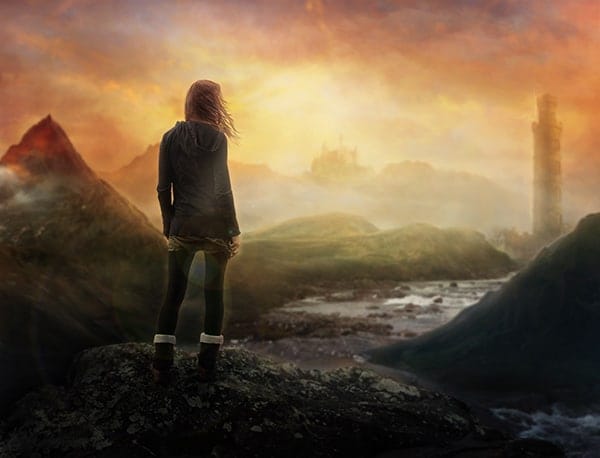


Reduce the opacity of the layer to 40%

Step 28 River
Go back to the background, and place the image of a river

Add a layer mask and hide all the parts leaving only the river, and reduce the opacity of the layer to 70%

Step 29 Shadows
Pick a soft round brush a big one and paint over the rock to make the shadow of the model. Color black with 35% of opacity

Step 30 Highlights
In a new layer with a small round brush 2 or 4px paint to make strokes in the mountains and objects, the color has to be orange.

Here they are white so you can see them

Step 31 Blur
Make the background a little blurry to do this, hide all the layers and just leave the ones that belong to the background, press Ctrl + A, then Ctrl + Shift + C to select the current image, not the current layer, and finally press Ctrl + V and you will have a copy of the background.
Adding blur to the background will give the look that the mountains and all the other objects are far away from the model.

Now you can convert the layer in a smart object and apply the filter Gaussian blur with 2px of radius:

Step 32 Dark
In a new layer paint with a black brush like this, the opacity can be set with the pen pressure or you can you 20%

Change the layer mode to soft light

Step 33 Colors
Now paint the sky with orange, yellow and a bit of blue tones to give more intensity to the lighting. Use the layer in soft light mode

In soft light mode

Step 34 Gradient Fill
Go to the menu that is in the bottom of the layers and select the icon Create New Fill or adjustment layer, and then pres at the option Gradient.

Now Select black and Yellow to to the gradient

Step 35 Layer Mode
Change layer mode to Soft light and reduce the opacity to 20%

Step 36 The final touch
Fill a new layer with black and go to the menu Filter – Render – Lens Flare

Press Ok and you will have something like this:

change layer mode to screen, reduce the opacity to 50% and the fill to 70%

That’s all this time.
Final Results

Tutorial by Andrea Garcia

Thank you so much for reading this tutorial, I hope this is helpful for you all. If you want to check more of my art go to www.andygarcia666.deviantart.com
– Andrea García
End of tutorial


