

Update (September 12, 2024): The Refine tool has moved to a new location. With the selection still active, and the Magic Wand tool as your active tool (W), right-click on the selection and choose “Select and Mask”. Select the “Refine Edge Brush Tool” from the left toolbar or by pressing R.
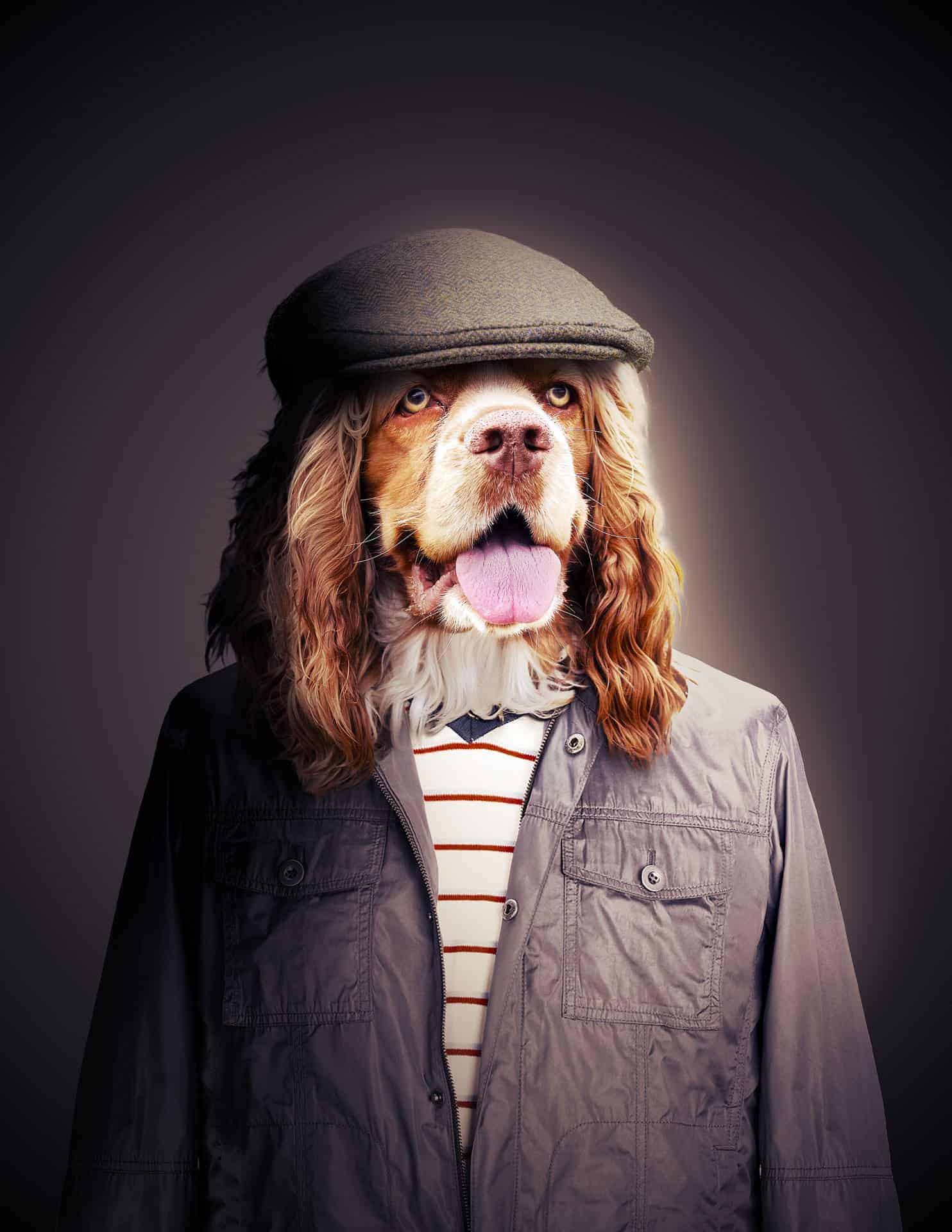
Basically this allows you to tweak your edge to better reflect the substance being cut out (fur has different opacities in places that a hard edge won’t create properly). My settings are below, but an important part of the refine edge is the brush associated with it. With the Refine Edge box still up you can brush around your selection in the work area. This will automatically try and figure out whats a part of your object and the intended selection and what isn’t and add it to your selection. It’s much easier to understand when you use it so I encourage you to play with it a bit before moving forward. This is a very important tool for extracting things like hair. Once you’re happy with the result click on OK and the selection will be applied. You’ll still have marching ants and the rest of your image will still be visible but once you mask out the layer () your selection will show. Remember to mask out with the mask selected (The white box to the right of the layer thumbnail). From here we can use a similar technique on the pieces of clothing to bring them in nicely.

Step 5
Here we can bring in the clothing. Remember to use Masks so you can make any adjustments later. Mask and place them on your model. Keep in mind things like fur around the collar and ears hanging down over or behind the clothing. Adding little pieces of depth can help add to the realism of the final product.

Step 6
From here we can start adding shadows, these are really what will make this image pop and give it a believable feel. First let’s make a hard shadow under the ears and collar as if the main light was coming from the top right. If you place your cursor over the mask for the dog and hold Ctrl or Cmd when you click on it it will select the mask. Bring in a new layer under the animal but above the clothing called “Hard Shadow”. With the Layer “Hard Shadow” active and the Subjects mask as the selection, go to Selection > Transform Selection and move it down and to the left by just a little bit. Hit enter and use a nice fluffy brush at about 10% opacity to draw in a little shadow. No need to get too harsh here just enough to define the edge. Then deselect that () and bring in a new layer above “Hard Shadow” and call it “Soft Shadow”. Here we’ll use abut the same brush to draw in a fluffier shadow following the same line as the last one but without the hard edge. Let the Hard Shadow define the edge and the soft shadow gives some depth.


