


Step 28
I use one from wire frames pack to put to the right of model head and set the mode to Soft Light 100%:

Step 29
Make a new layer on the top. I use soft brush with color to brighten the top of model head and blend elements there together. Change the mode to Overlay 100%:

Step 30
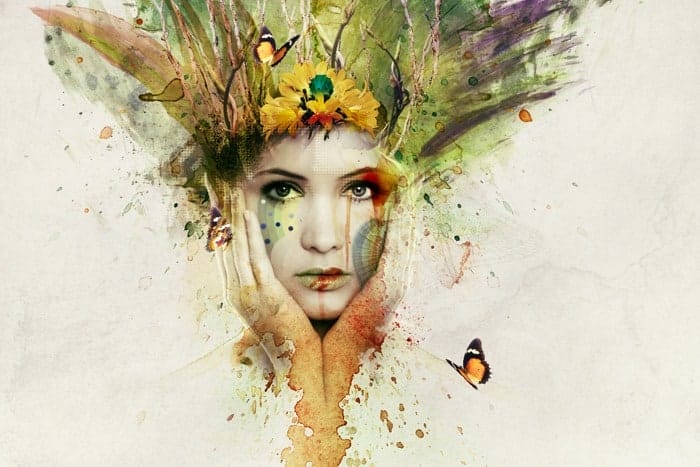
Open butterflies pack. I choose 3 from them to move into our picture, arrange them as shown below:

Make group for these butterflies and change the mode of this group to Normal 100%. Create a Curves layer within this group to brighten and alter color of butterflies a little:


Step 31
Create some adjustment layers on the top.
Gradient Map:

Set this Gradient Map layer to Soft Light mode 100%. Color Balance and Levels:

Final Results

Tutorial how Jenny Le
 Thank you for reading this tutorial, I’d love to hear your feedback. If you want to read my other tutorials, you can visit my website. Enjoy photoshopping!
– Jenny
End of tutorial


