


Step 9
I add a Curves layer (Clipping Mask) to brighten the branches a bit:

Step 10
Open branches 2 stock. I take a part from this pic and situate it at the top right of model head, then duplicate it twice, name them from 1 to 3. I flip 2nd horizontally, then position them around model head part. I use layer mask to erase the bottom of the third:


Step 11
These branches look darker from background so I want to brighten them together. To do it, make these layers selected then hit Cmd/Ctrl+G to make group for them. Change the mode of this group from Pass Through (default group mode) to Normal 100%. On 3 layer, go to Layer-New Adjustment Layer-Curves:

Because the mode changed to Normal 100% so this Curves layer only affects the layers inside this group (branches 2 ones).

Step 12
Make a new layer on the top. Set foreground and background to and . Use Rectangular Marquee Tool to make a square on the pic then go to Filter-Render-Clouds. After applying Clouds filter, choose Filter-Pixelate-Mosaic:

Filter-Distort-Polar Coordinates:

Step 13
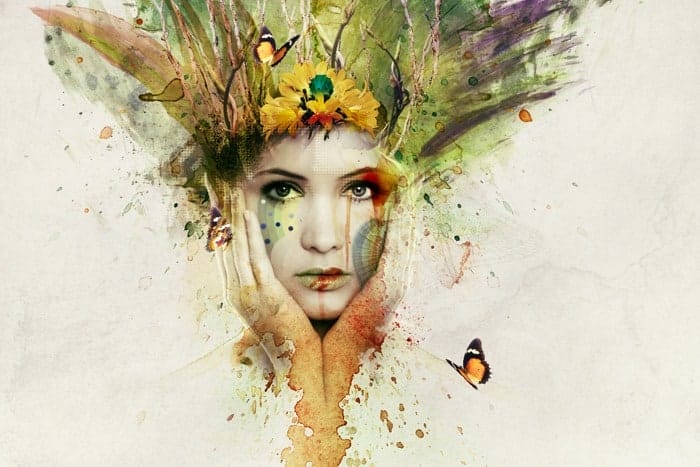
Convert this result to Smart Object then downsize it and change the mode to Hard Light 100%. Use Cmd/Ctrl+T to rotate it and move it to the right cheek of model and erase unwanted parts with layer mask:

Duplicate this layer and move to left cheek under the eye, hide the left part of it with black brush and layer mask:

I use a Color Balance layer (Clipping Mask) to change color of this effect:

Step 14
Make a new layer and use hard brush with color to make some dots under the left eye. Before spotting, press F5 to change settings for this brush:


Double click this layer and apply Gradient Overlay for these dots:


Step 15
Create a new layer and make selection for the lips, fill it with color then change the mode to Hard Light 100%:

I name it “color lips”.
Step 16
I use a new layer, change brush to splatter ones and set foreground to . Take brush number 681 with size about 100 px to spot over the lips. Hold Cmd/Ctrl while clicking “color lips” layer to load it selection then click Add layer mask button. After it, change the mode to Overlay 100%:


