
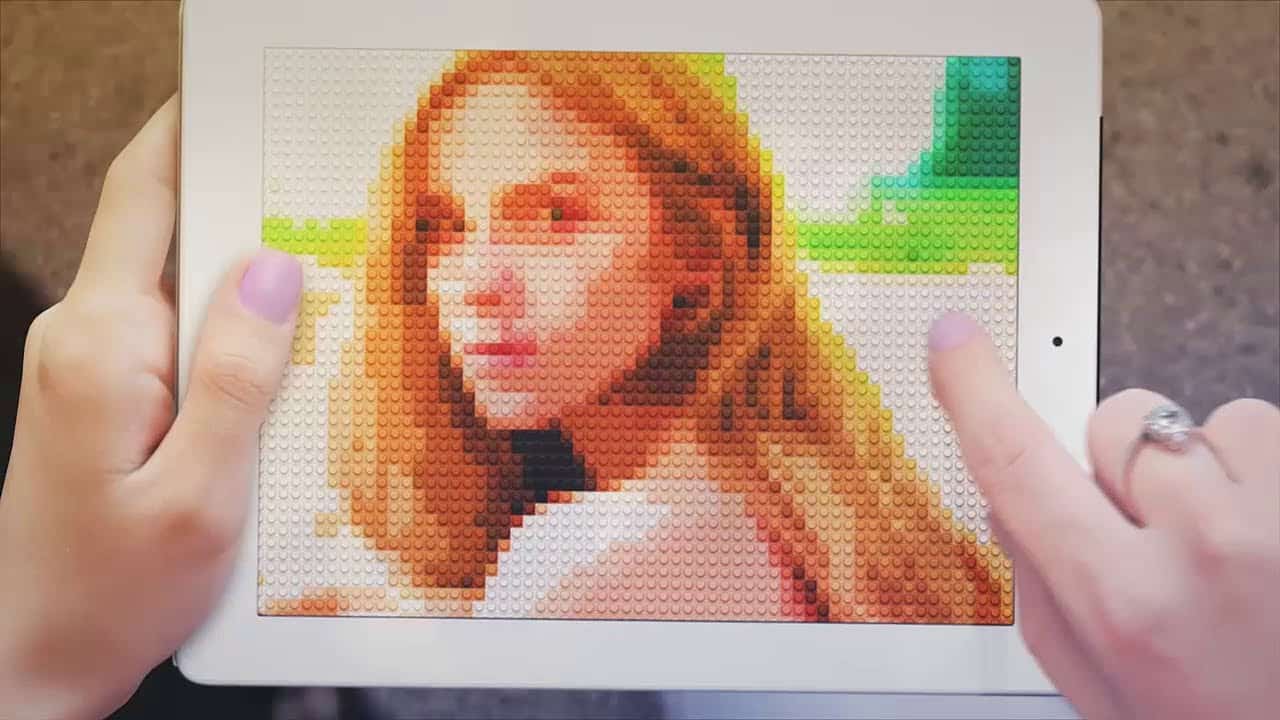

Turn any of your photos into a brick mosaic inspired by the official Lego photo app! This Photoshop tutorial will show you how to create the effect from any photo and it’s really easy to do. You’ll learn how to pixelate your photo, create a brick pattern and overlay it on top of your photo, and compress the bricks into a limited color palette to make it look more realistic. Follow this tutorial and create your own cool brick mosaic photo!
Preview of Final Results

Step 1
Open any image you like into Photoshop. We recommend using an image that’s at least 2000×2000 pixels. If your image isn’t large enough, you can use the Image Size tool () to resize it up – don’t worry about getting a blurry image from upscaling because we’ll be pixelating it anyways!
I’ll be using this image from ShutterStock. Simple photos like the one below will have better results than a busy photo (ex. cityscape photo).

Step 2
Duplicate the layer so that you have a backup copy. You can duplicate your layer by pressing Ctrl/Cmd+J. Rename this layer to “Bricks”. Right-click on the new layer then select “Convert to Smart Object”. By converting the layer into a Smart Object, we can apply Smart Filters which give you the option of changing your settings at a later time.

Step 3
Next, go to . Adjust the Cell Size setting until you can barely make out the image. This setting will determine the size of your bricks. Remember the cell size setting because we’ll need it for the next step.

Step 4
Create a new document (Ctrl/Cmd+N or ) with the same width and height as the cell size setting you used earlier. For example, if you used the Mosaic Filter with a cell size of 64 square, then you would create a new 64×64 pixels document.

Step 5
Press Shift+Backspace or go to to open the Fill tool. In the drop down menu, select “50% Gray” then click OK.

Your document will be filled with 50% gray.

Step 6
Select the Ellipse tool (U) then create a circle in the center (the color of the circle doesn’t matter). You can create a perfect circle by holding the shift key. Switch to the Move tool (V) to position it in the center of your document.


