


Step 28
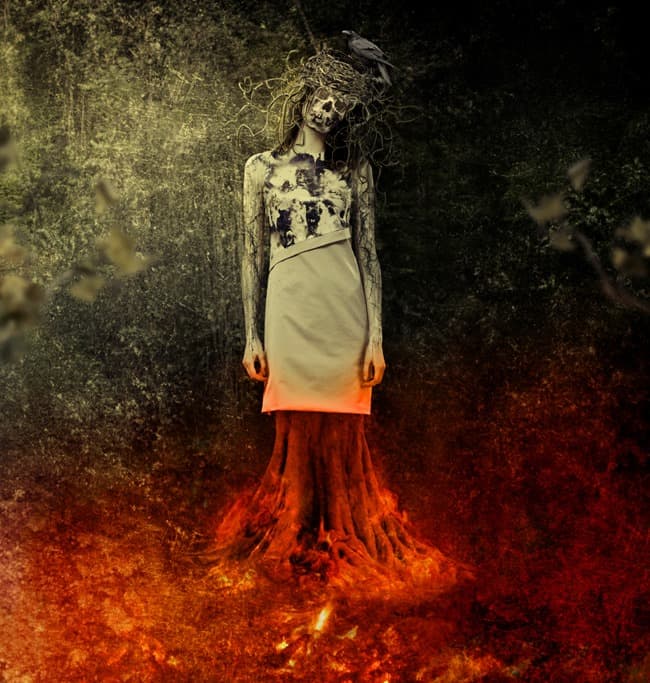
Open tree stock. I copy a part of the tree and paste it into the pic:


Use layer mask to make the tree stand under model dress :

Step 29
Make a new layer with Clipping Mask, I use Clone Tool to fix some details of the tree:

We’ll be changing color of the tree later.
Step 30
Extract crow and put him above the nest:

Step 31
Apply some adjustment layers for the crow:

Step 32
Now we’re going to create light effect for the scene. Make a new layer on the top. Use soft brush with color to paint on the bottom right and change the mode to Soft Light 100%:

On the next layer I change brush color to . Paint on the two edges and set the mode to Soft Light 100%:

Step 33
Make three layers on the top. On the first I use color to paint over the tree and lower part of model dress and hands. I change the mode to Color 100%:

On the second and third I use color to paint on tree, model dress, hands and bottom right of the pic. I alter the mode of the second to Color 30%, the third to Soft Light 90%:

Step 34
Place the fire background at the lower part of the pic:

Use Spatter 24 pixels brush with same settings in step 14 to trim the edges. The aim is to achieve a rich, flaming look but not too obvious. You can see the result of mine on the mask and the picture:

Step 35
Open fire stock. Take different parts of the fire to position around the tree root. Duplicate and transform the fire if needed:


Change the mode of these fire layers to Screen 100% and use layer mask to erase and blur some details on the fires:

Step 36
To remove hard edges of the fires, double click a fire layer, choose Blending Options. Hold Alt/Option key and drag black slider of This Layer to the right until the black edge disappear. Then make all other fire layers selected, right click and choose Copy Layer Styles. We have result:


Step 37
Group all fire layers and change the mode to Screen 100%. I use Color Balance and Curves to make the fire effect redder and less obvious:


On Curves layer mask I erase a bit on the right of the fire part:

Step 38
Final touch: I use two adjustment layers on the top to enhance the contrast and color of the whole picture:


