

- In the Layers panel, click New Adjustment Layer > Solid Color
- Choose color #f6968c (a soft pink)
- Move this layer just above the original Background layer
- Delete the original Background layer since it’s no longer needed

Step 8: Import Donut Photo
Drag and drop the donut photo into the document. In the Layers panel, drag this layer to the top.
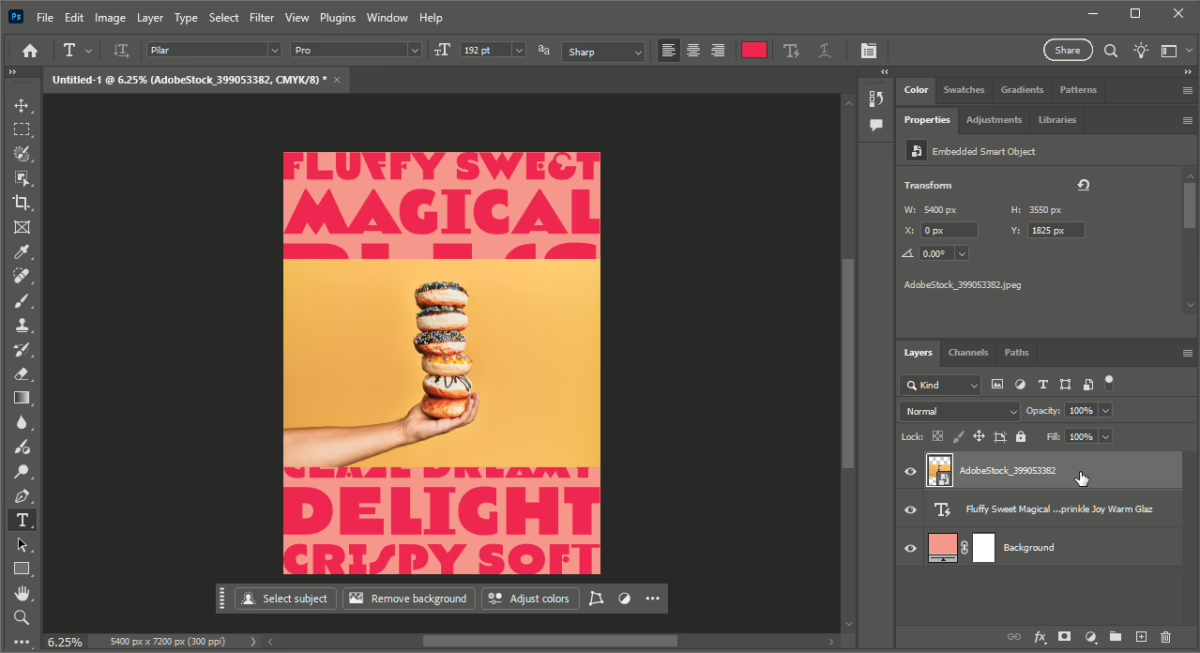
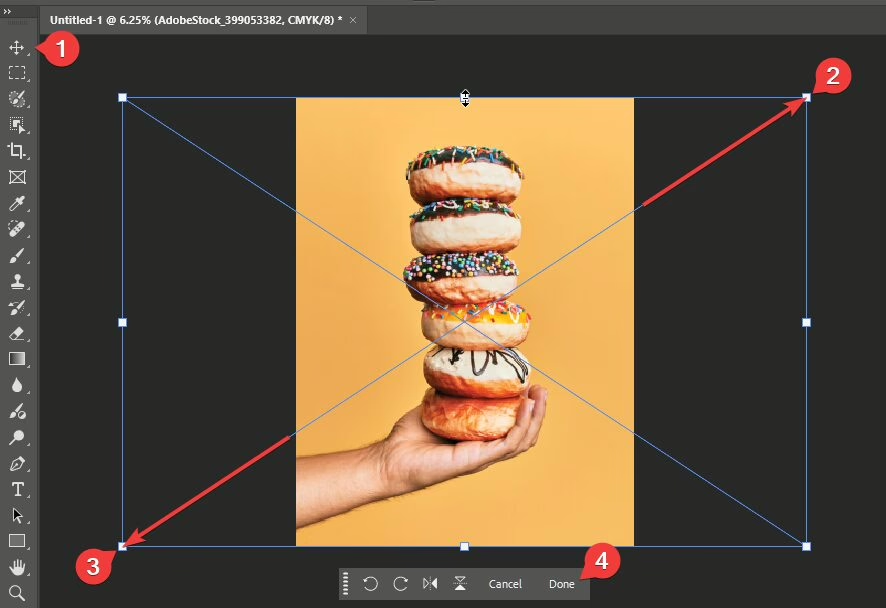
With the Move tool (V) selected, resize the donut image to fit your canvas and press Enter or click Done on the contextual task bar.
Step 9: Remove Donut Background
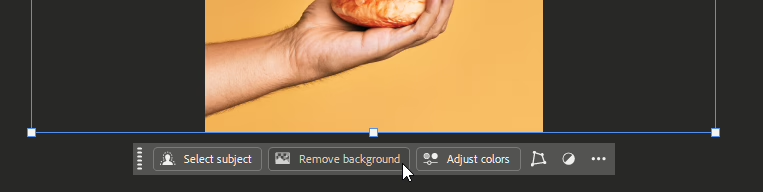
With the donut layer selected, click the Remove Background button in the contextual task bar. Photoshop’s AI will isolate your donuts by removing their background.
Final Touch
Your donut poster is ready!

Try adding another word in your dynamic text layer and watch how it adjusts instantly with no extra effort.
Download the PSD
4 responses to “Auto-Resizing and Reflowing Text in Photoshop”
-

The dynamic text button is greyed out, any clue how to fix?
-
Still receiving 404 error on zip file link…..
-
404 Not Found outcome when clicking on the Dynamic Text Tutorial zip link???
-
I’m guessing you clicked the link in the newsletter. Sorry, that one wasn’t working. The link in the post is working, but here it is again for you: https://downloads.photoshoptutorials.ws/psds/Dynamic%20Text%20Tutorial.zip
-


Leave a Reply