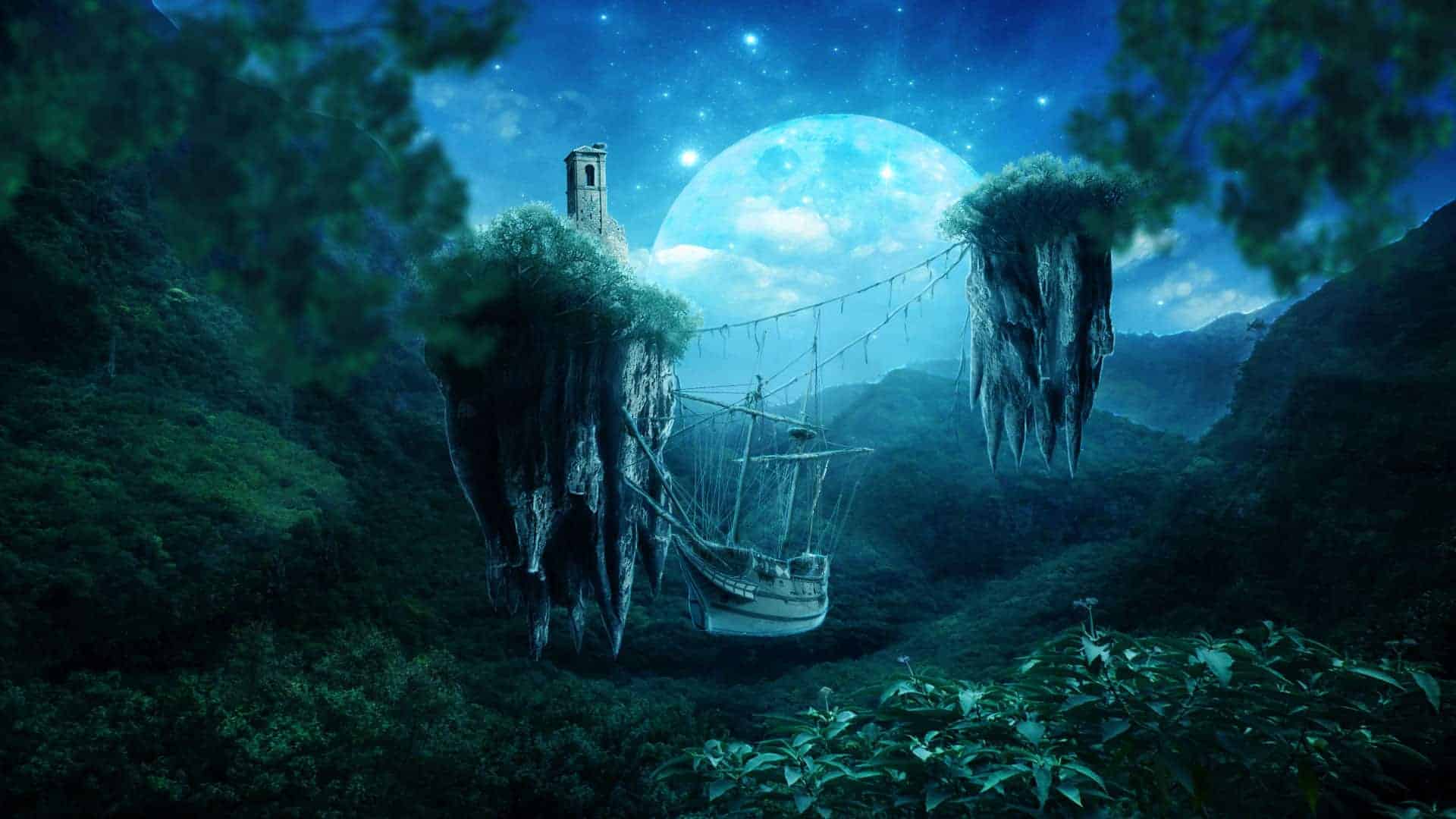
![step-067[6] step-067[6]](https://cdn.photoshoptutorials.ws/wp-content/uploads/2014/02/step-0676-1.jpg?strip=all&webp=82&avif=82&w=1920)
Step 68
Add adjustment layer with brightness/contrast. (clipping mask) Set it:
![step-068[6] step-068[6]](https://cdn.photoshoptutorials.ws/wp-content/uploads/2014/02/step-0686-1.jpg?strip=all&webp=82&avif=82&w=1920)
Step 69
With soft brush, color, on new layer draw shadows on tree. Set blending mode to Multiply. (clipping mask)
![step-069[6] step-069[6]](https://cdn.photoshoptutorials.ws/wp-content/uploads/2014/02/step-0696-1.jpg?strip=all&webp=82&avif=82&w=1920)
Step 70
With the same brush on new layer draw lights on the tree. Change opacity to 26%.(clipping mask)
![step-070[6] step-070[6]](https://cdn.photoshoptutorials.ws/wp-content/uploads/2014/02/step-0706-1.jpg?strip=all&webp=82&avif=82&w=1920)
Step 71
Create new layer. Choose spatter 59 px brush color. Draw on the edges of trees. (clipping mask) Then change blending mode to Soft Light.
![step-071[6] step-071[6]](https://cdn.photoshoptutorials.ws/wp-content/uploads/2014/02/step-0716-1.jpg?strip=all&webp=82&avif=82&w=1920)
Step 72
Then with 1px soft brush, the same color, draw light contours. I also prepared some contours of hanging plants :).
![step-072[6] step-072[6]](https://cdn.photoshoptutorials.ws/wp-content/uploads/2014/02/step-0726-1.jpg?strip=all&webp=82&avif=82&w=1920)
Step 73 Making Plants
Create new folder. With soft 1px brush color draw long stroke, under the light countour.
![step-073[6] step-073[6]](https://cdn.photoshoptutorials.ws/wp-content/uploads/2014/02/step-0736-1.jpg?strip=all&webp=82&avif=82&w=1920)
Step 74
Now with the same brush draw lianas. Arrows will guide you :)
![step-074[6] step-074[6]](https://cdn.photoshoptutorials.ws/wp-content/uploads/2014/02/step-0746-1.jpg?strip=all&webp=82&avif=82&w=1920)
Step 75
Make the same with lower plants.
![step-075[6] step-075[6]](https://cdn.photoshoptutorials.ws/wp-content/uploads/2014/02/step-0756-1.jpg?strip=all&webp=82&avif=82&w=1920)
Step 76
On the lowest parts of plants use the same technique.
![step-076[6] step-076[6]](https://cdn.photoshoptutorials.ws/wp-content/uploads/2014/02/step-0766-1.jpg?strip=all&webp=82&avif=82&w=1920)
Step 77 ship
Paste ship png.
![step-077[6] step-077[6]](https://cdn.photoshoptutorials.ws/wp-content/uploads/2014/02/step-0776-1.jpg?strip=all&webp=82&avif=82&w=1920)
Step 78
Reduce saturation with Hue/Saturation adjustment layer. Then create clipping mask! :)
![step-078[6] step-078[6]](https://cdn.photoshoptutorials.ws/wp-content/uploads/2014/02/step-0786-1.jpg?strip=all&webp=82&avif=82&w=1920)
Step 79
Add color/balance layer (clipping mask). Set it as shown below. Then set blending mode to Screen – it will look like lights from the moon!.
![step-079[6] step-079[6]](https://cdn.photoshoptutorials.ws/wp-content/uploads/2014/02/step-0796-1.jpg?strip=all&webp=82&avif=82&w=1920)
Step 80
Mask this layer.
![step-080[6] step-080[6]](https://cdn.photoshoptutorials.ws/wp-content/uploads/2014/02/step-0806-1.jpg?strip=all&webp=82&avif=82&w=1920)
Step 81
Then add Brightness/Contrast layer (create clipping mask).
![step-081[6] step-081[6]](https://cdn.photoshoptutorials.ws/wp-content/uploads/2014/02/step-0816-1.jpg?strip=all&webp=82&avif=82&w=1920)
Step 82
Mask layer. It will look like shadow :).
![step-082[6] step-082[6]](https://cdn.photoshoptutorials.ws/wp-content/uploads/2014/02/step-0826-1.jpg?strip=all&webp=82&avif=82&w=1920)
Step 83
Again adjustment layer with Brightness/contrast. Also clipping.
![step-083[6] step-083[6]](https://cdn.photoshoptutorials.ws/wp-content/uploads/2014/02/step-0836-1.jpg?strip=all&webp=82&avif=82&w=1920)
Step 84
Then set color/balance with clipping mask.
![step-084[6] step-084[6]](https://cdn.photoshoptutorials.ws/wp-content/uploads/2014/02/step-0846-1.jpg?strip=all&webp=82&avif=82&w=1920)
Step 85
Add new layer. Here you should set 1px soft light-blue brush. Draw gently contours of the ship and fix ropes.
![step-085[6] step-085[6]](https://cdn.photoshoptutorials.ws/wp-content/uploads/2014/02/step-0856-1.jpg?strip=all&webp=82&avif=82&w=1920)
Step 86 corner leaves
In the left corner of picture, paste Corner leaves.
![step-086[6] step-086[6]](https://cdn.photoshoptutorials.ws/wp-content/uploads/2014/02/step-0866-1.jpg?strip=all&webp=82&avif=82&w=1920)
Step 87
From menu Filter choose blur > Gaussian blur. Set it as shown below:
![step-087[6] step-087[6]](https://cdn.photoshoptutorials.ws/wp-content/uploads/2014/02/step-0876-1.jpg?strip=all&webp=82&avif=82&w=1920)
Step 88
Add adjustment layer with hue/saturation. (Clipping mask).
![step-088[6] step-088[6]](https://cdn.photoshoptutorials.ws/wp-content/uploads/2014/02/step-0886-1.jpg?strip=all&webp=82&avif=82&w=1920)
Step 89
Now, holding ctrl, choose Leaves and Hue/Saturation layers. Duplicate it.
![step-089[6] step-089[6]](https://cdn.photoshoptutorials.ws/wp-content/uploads/2014/02/step-0896-1.jpg?strip=all&webp=82&avif=82&w=1920)
Step 90
Then transform it (ctrl +T, or Free transform from “Edit” menu). I flipped it horizontally and changed position.
![step-090[6] step-090[6]](https://cdn.photoshoptutorials.ws/wp-content/uploads/2014/02/step-0906-1.jpg?strip=all&webp=82&avif=82&w=1920)
Step 91
Wow! You are on good way! Add layer. Now with 300 px soft color brush, draw as shown. It will be glow.
![step-091[6] step-091[6]](https://cdn.photoshoptutorials.ws/wp-content/uploads/2014/02/step-0916-1.jpg?strip=all&webp=82&avif=82&w=1920)
Step 92
Next, you should choose from menu .
![step-092[6] step-092[6]](https://cdn.photoshoptutorials.ws/wp-content/uploads/2014/02/step-0926-1.jpg?strip=all&webp=82&avif=82&w=1920)
Step 93
Change blending mode to Soft light and opacity to 41%.
![step-093[6] step-093[6]](https://cdn.photoshoptutorials.ws/wp-content/uploads/2014/02/step-0936-1.jpg?strip=all&webp=82&avif=82&w=1920)
Step 94
Now you should add new layer. Choose big (800px) soft, white brush. Draw large dot on the moon. Then change blending mode to Soft Light.
