
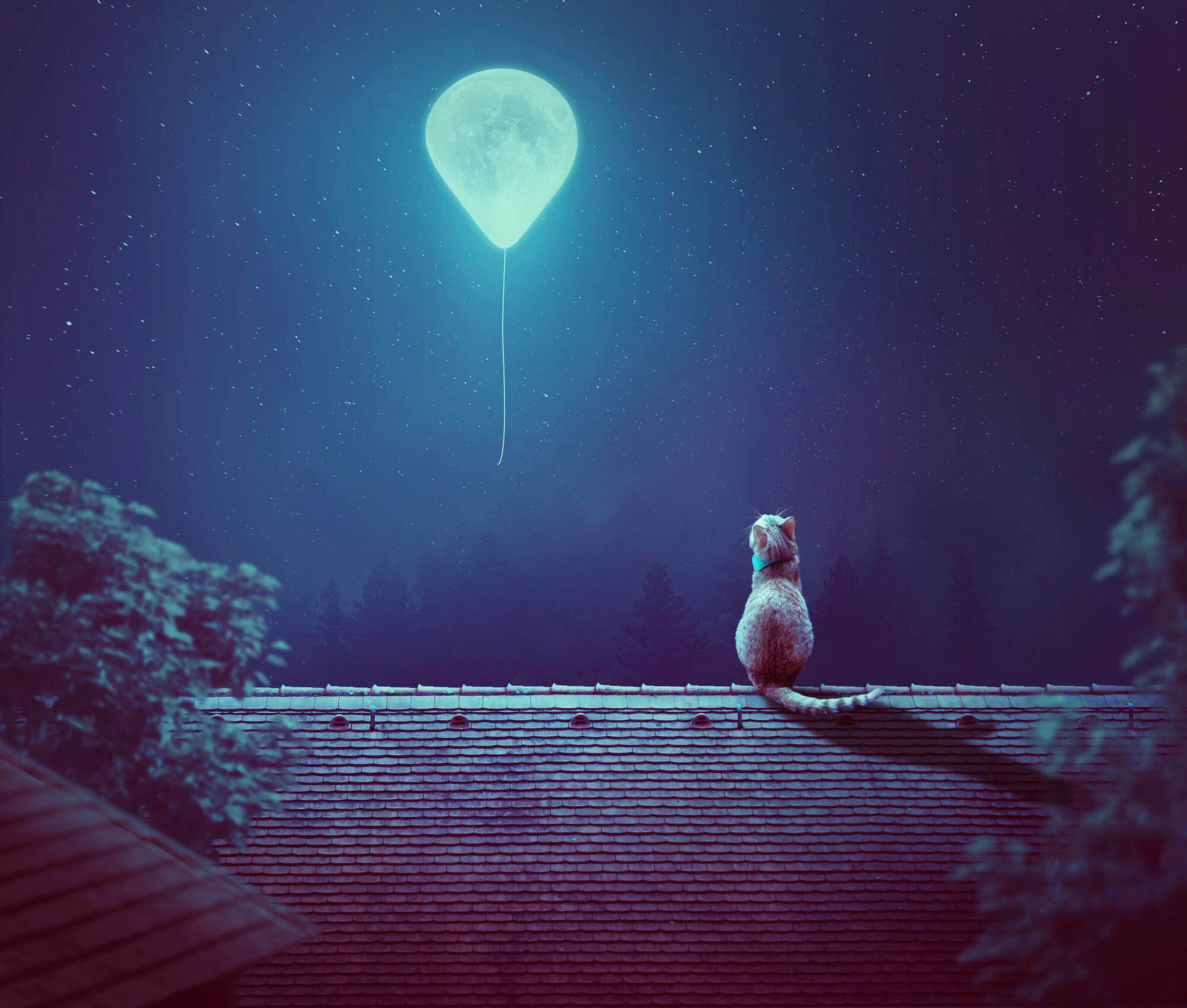


Add a Photo Filter adjustment layer and pick the color :

Step 45
Create a Curves adjustment layer to brighten the cat. On this layer mask, use a soft black brush to reduce the light effect on the front and tail of the cat.

Make another Curves adjustment layer to darken the back side of the cat more. The selected areas show where to paint on the layer mask.

Step 46
Add a new layer and use a soft brush with the color to fix some color details on the head, body and the back bottom of the cat. Alter this layer mode to Color 100%.

Make another layer and use a soft brush with the color , the opacity about 50% to paint on the front of the head and the bottom of the body’s contour . Change this layer mode to Color 100%.

Step 47
Create a new layer on top of the layers and a small brush with the color to paint some whiskers for the cat.

Step 48
Make a Gradient Map adjustment layer on top of the layers and pick the colors and . Lower the opacity of this layer to 20%.

Create a Color Balance adjustment layer and change the Midtones and Highlights settings:


Step 49
Add a Photo Filter adjustment layer and pick the color .

Create a Curves adjustment layer to increase the contrast of the whole scene.

Make a Vibrance adjustment layer to enhance the final effect.

Final Result

Download the PSD
End of tutorial


