
![image092[5]](https://cdn.photoshoptutorials.ws/images/stories/68c3a34a5b97_E909/image0925.jpg?strip=all&webp=82&avif=82&w=1920 "image092[5]")
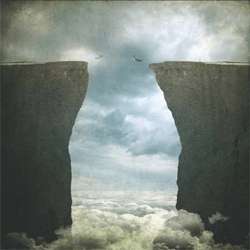
Next, transform it (Ctrl/Cmd + T) as shown on the image below:
![image093[5]](https://cdn.photoshoptutorials.ws/images/stories/68c3a34a5b97_E909/image0935.jpg?strip=all&webp=82&avif=82&w=1920 "image093[5]")
Step 33
Now, change the Blending mode and Opacity to the following:
- Blending Mode: Soft Light
- Opacity: 30%
The result:
![image094[5]](https://cdn.photoshoptutorials.ws/images/stories/68c3a34a5b97_E909/image0945.jpg?strip=all&webp=82&avif=82&w=1920 "image094[5]")
Group all these textures (Ctrl/Cmd + G) and name this group to “Textures”.
Step 34 – Enhance the Color
Now, for the final process, we will be enhancing the colors and exposure of our image. To start, create a Solid Color adjustment layer from the “Create New Fill/Adjustment layer button”.
![image068[9]](https://cdn.photoshoptutorials.ws/images/stories/68c3a34a5b97_E909/image0689.jpg?strip=all&webp=82&avif=82&w=1920 "image068[9]")
Click that and then choose “Solid Color” from the contextual menu:
![image095[5]](https://cdn.photoshoptutorials.ws/images/stories/68c3a34a5b97_E909/image0955.jpg?strip=all&webp=82&avif=82&w=1920 "image095[5]")
Once open, input the following on the # space.
- #: 002d42
![image096[5]](https://cdn.photoshoptutorials.ws/images/stories/68c3a34a5b97_E909/image0965.jpg?strip=all&webp=82&avif=82&w=1920 "image096[5]")
Step 35
Change the Blending mode of this layer to the following:
- Blending mode: Exclusion
- Opacity: 40%
- Fill: 70%
![image097[5]](https://cdn.photoshoptutorials.ws/images/stories/68c3a34a5b97_E909/image0975.jpg?strip=all&webp=82&avif=82&w=1920 "image097[5]")
Next, create a Color Balance adjustment layer.
![image098[5]](https://cdn.photoshoptutorials.ws/images/stories/68c3a34a5b97_E909/image0985.jpg?strip=all&webp=82&avif=82&w=1920 "image098[5]")
Once open, input the following:
- Color Levels: 0, 0, -15
- Tone Balance: Midtones
- Preserve Luminosity: Check
![image099[5]](https://cdn.photoshoptutorials.ws/images/stories/68c3a34a5b97_E909/image0995.jpg?strip=all&webp=82&avif=82&w=1920 "image099[5]")
Step 36
Next, let’s create a Photo Filter adjustment layer.
![image100[5]](https://cdn.photoshoptutorials.ws/images/stories/68c3a34a5b97_E909/image1005.jpg?strip=all&webp=82&avif=82&w=1920 "image100[5]")
Once open, choose the following filter:
![image101[5]](https://cdn.photoshoptutorials.ws/images/stories/68c3a34a5b97_E909/image1015.jpg?strip=all&webp=82&avif=82&w=1920 "image101[5]")
Next, let’s create another Solid Color adjustment layer. This time, input the following:
- #: 382110
![image102[5]](https://cdn.photoshoptutorials.ws/images/stories/68c3a34a5b97_E909/image1025.jpg?strip=all&webp=82&avif=82&w=1920 "image102[5]")
Step 37
Change the Blending mode and Opacity of this solid color layer to the following:
- Blending Mode: Soft Light
- Opacity: 40%
Next, let us create an Exposure adjustment layer.
![image069[9]](https://cdn.photoshoptutorials.ws/images/stories/68c3a34a5b97_E909/image0699.jpg?strip=all&webp=82&avif=82&w=1920 "image069[9]")
Once open, input the following:
- Exposure: 0.39
- Offset: 0.0176
- Gamma Correction: 1.00
![image103[5]](https://cdn.photoshoptutorials.ws/images/stories/68c3a34a5b97_E909/image1035.jpg?strip=all&webp=82&avif=82&w=1920 "image103[5]")
Final Results
![image104[5]](https://cdn.photoshoptutorials.ws/images/stories/68c3a34a5b97_E909/image1045.jpg?strip=all&webp=82&avif=82&w=1920 "image104[5]")
Authors Comment
![image106[5]](https://cdn.photoshoptutorials.ws/images/stories/68c3a34a5b97_E909/image1065.jpg?strip=all&webp=82&avif=82&resize=164%2C166 "image106[5]") Well, the theme of this manipulation is a little cheesy but I do hope that this would be able to help you in impressing your friends or even you loved one. Thank you for visiting this page and using my tutorial, if you want to see more of my art works, give me a shout at my website:https://www.wix.com/theflickerees/michaelVmanalo or you can check out my blog:
Well, the theme of this manipulation is a little cheesy but I do hope that this would be able to help you in impressing your friends or even you loved one. Thank you for visiting this page and using my tutorial, if you want to see more of my art works, give me a shout at my website:https://www.wix.com/theflickerees/michaelVmanalo or you can check out my blog:
– Michael Vincent Manalo
6 responses to “How to Create a Conceptual Image of a Couple Jumping from High Cliffs in Photoshop”
-

Good tutorial! Thank you!
-
Thanks a lot! Your tutorial is very useful and so precise, unlike many others. Very good guidance.
-
Too much ‘grunge’ for my liking but , nice idea and thanx anyway.
-
After completing one of your tutorials, i am reminded of the quotation below.
There are some days when I think I’m going to die from an overdose of satisfaction.
Salvador Dali -
Awesome tutorial, Thanks heaps! Keep it up :)
-
a very good tutorial i learnt a lot thank-you


Leave a Reply