

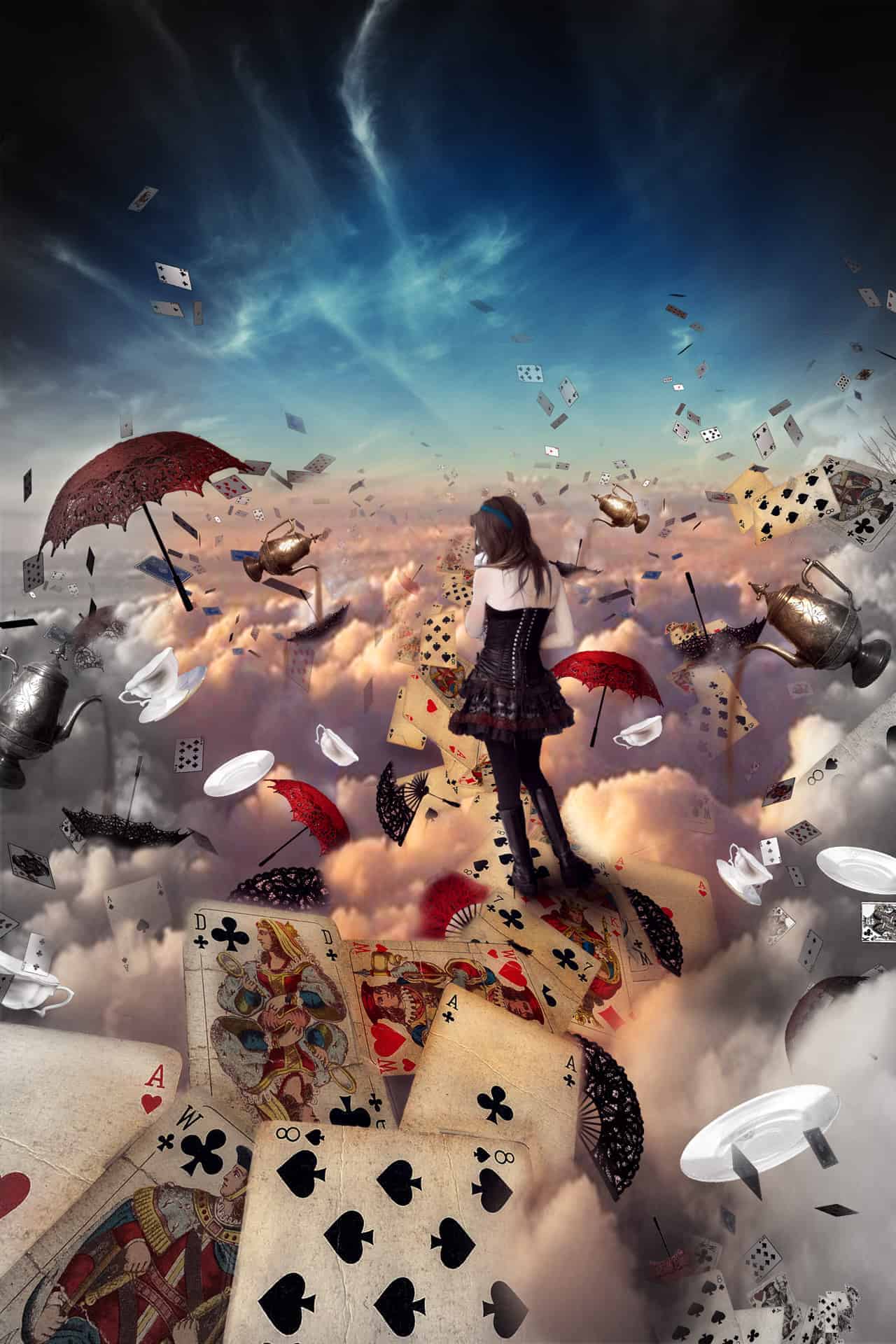
Learn how to this surreal photo manipulation of an Alice in Wonderland on amazing and surreal atmosphere with Photoshop. In this tutorial, you’ll learn how to create your amazing atmosphere and adventure tales with realistic shadows and lighting, then complete it with a bleak color tone effect. Throughout the tutorial, you’ll learn techniques that will help you create better matte paintings and photo manipulations. Read this tutorial and find out how easy it is!
What you’ll be creating
To create this image of Alice, we’ll start by creating the atmosphere and the main stage in the form of road maps. Next, we’ll add we begin to add items as teapots, cups of little cards and other. Finally, we’ll finish it up with image correction and adding effects. You’ll need any version of Photoshop, inspiration and good mood!
Tutorial Resources
- Clouds
- Playing cards
- flying cards
- Umbrellas and fans
- Model
- Cups and saucers
- saucers
- Clouds/Sunset
- Tea Kettle
Step 1
Start by creating! Create a new document. Go to or the short key Ctrl+ N. A blank document with size of 2000 pixels wide and 3000 pixels high. I named the document “Alice”.

Step 2
Let’s start off adding the sky to our manipulation. Go to and select the image of the sky.

Step 3
After addition of the sky, then stretch, as shown in Figure. To transform the sky, press Ctrl+ T or go to . Pull the black cubes in the corners formed frame.

Step 4
To the sky was brighter and stood out edges of the clouds, I added an adjustment layer to the sky. Go to / Contrast or button in the Layers palette and set the settings: Brightness 13, Contrast 13.


Step 5

Then add another layer > New Adjustment Layer > Photo Filter. These layers make a sunset sky.

Set the settings: Filter – Warming Filter (85), Density: 17.
Step 6
Then add another layer> New Adjustment Layer > Hue/ Saturation.
This layer will make the color more vivid sunset.


Set the settings: Saturation: +13, Lightness: +1 Now the sky is brighter with a strong color that gives unusual picture
At this stage, work with the background sky will be over.
Step 7
I did not like the sky of the source file, so I decided to replace it with a more beautiful and bright.


