


Step 64
After selection, press the —-. In the menu that appears, choose a blending mode Overlay, to see exactly how our selection. Select the magnifying glass and zoom. See sharp burrs around our model? This allocation mistakes, so put a check on “Smart Radius” then use the settings as shown in the figure. After configuring settings, apply them by clicking Ok

Step 65
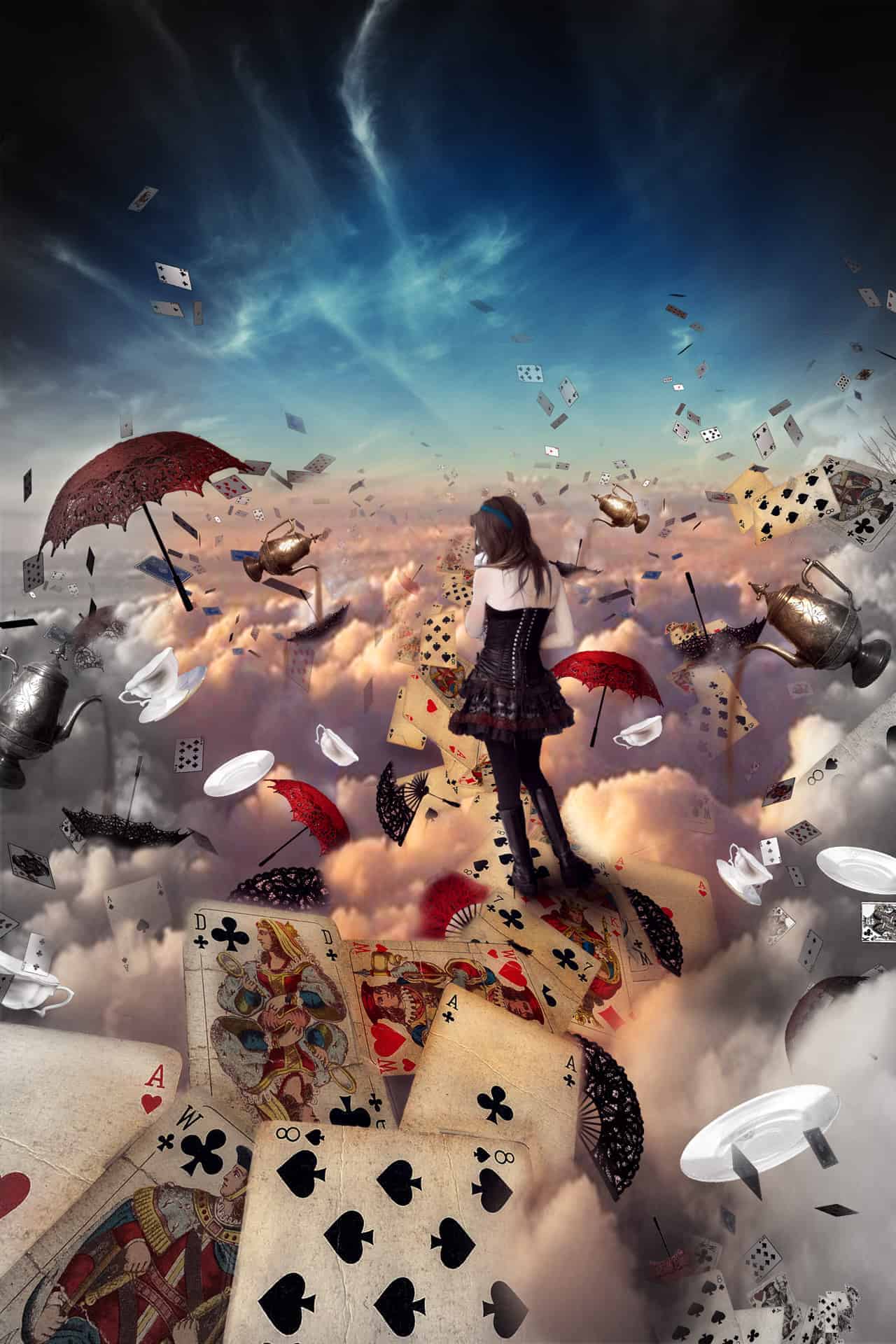
Now invert the selection by clicking Ctrl+ Shift +I and clicking on the layer mask icon in the Layers panel. Thereby removing unnecessary background and leaving us only girl.

Step 66
I did not like the look of the model, so I decided to add a little color to her skin and dress. Add a little color to the skin of the girl. To do this, create a new layer and set its opacity to him 90%. Now select the brush tool and set the following settings: Size: 50px, Hardness: 0% Opacity: 25% Flow: 20%. Choose a color and gently draw the skin of the girl.

Step 67
Now create a new layer, set the opacity 90% choose a color and paint part time lace skirt, corset and girl hair.

Step 68
Now add a little detail – blue ribbon, which was tied in the book Alice’s hair.
Create a new layer, select a color and with the same brush just smaller by clicking RMB on the field of our document. Carefully draw a blue ribbon.

Step 69
Now combine all layers with painted details by clicking Ctrl + E

Step 70
Add a shadow on the figure of the girl.
Create a new layer, calling it a “shadow.” Choose a brush with these settings: Size: 75px, Hardness: 0% Opacity: 45%, Flow:20%.
Then click on the icon color and select a color . Draw shadow under the soles on the left boot and the clouds.

Step 71
Draw pouring tea and steam from it. Create a new layer and select the brush with these settings: Size: 35px, Hardness: 0% Opacity: 45%, Flow:55%., choose a color and draw a stream of tea.

Step 72
Create a new layer and select the brush these settings Size: 90px, Hardness: 0% Opacity: 45%, Flow:55%. as shown in Figure. This time we use a texture brush. It is in the standard brushes. Color – .
Step 73
Now we need to show the incidence of light. Create a new layer by pressing Ctrl + Shift + N. In the menu that appears, set the settings as shown in the figure.


