
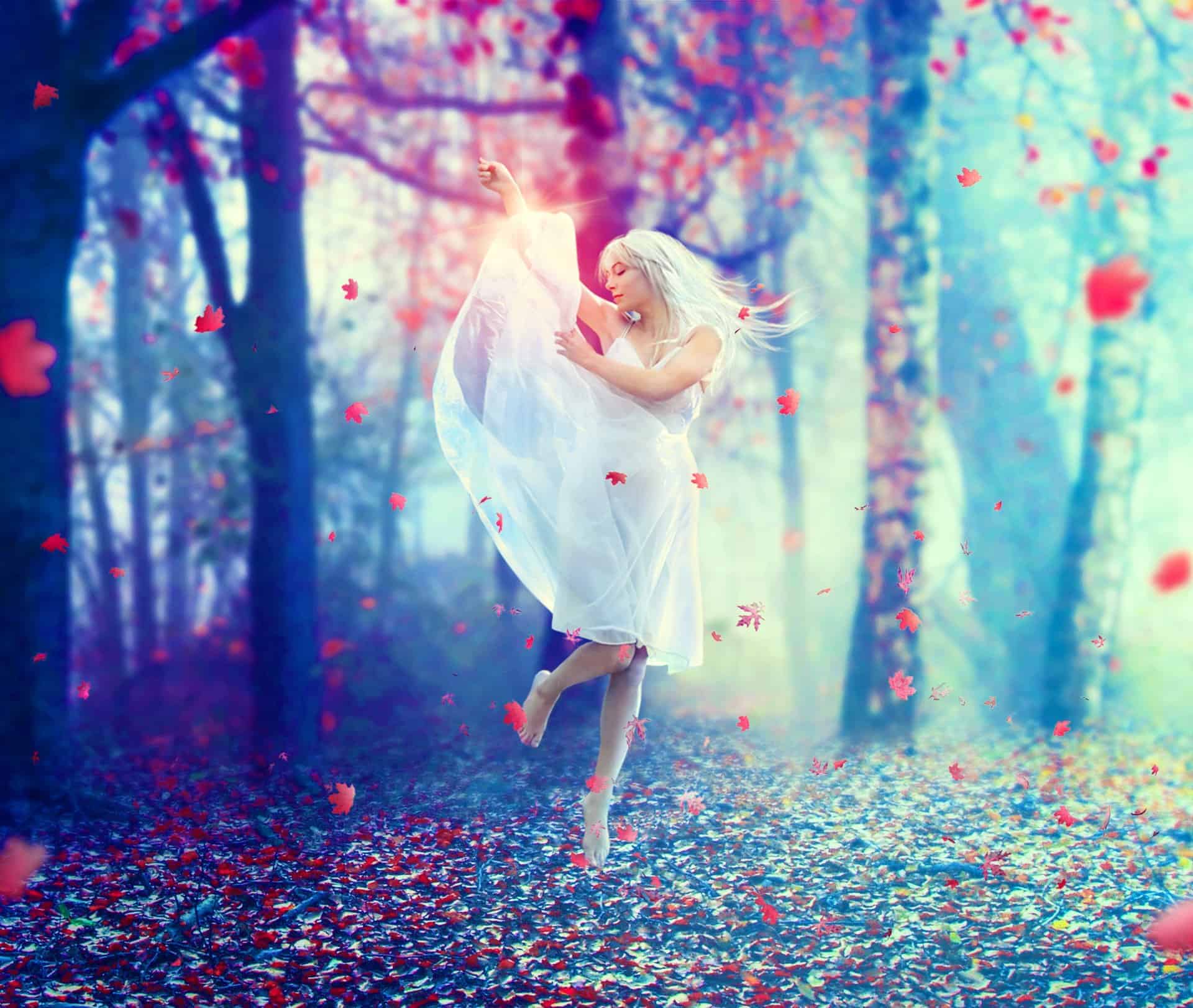


Step 37
I used a Hue/Saturation adjustment layer to change this light color:

Step 38
Add a Levels adjustment layer to this light layer to reduce the light area a little. Erase the center of it (on the model arm):

Step 39
Open the light 2 image. As it has a transparent background so simply drag it onto the raising arm of the model using the Move Tool. Change this layer mode to Screen 100%:

Step 40
Open the leaves images pack. Choose the leaves you like to add to the scene, around the model, try to achieve a random effect. Here is my result:

Step 41
Add some bigger leaves to the edges of the picture and apply Gassian Blur with 8 px to them:
Step 42
Make the leaves layers selected and press Cmd/Ctrl+G to create a group for them. Change the mode of this group from Pass Through (default group mode) to Normal 100%. Add a Hue/Saturation adjustment layer to the top of the layers within this group to match their color with the leaves of the background and on the ground:


Step 43
I used Curves to brighten the leaves:

On this Curves layer mask use a soft black brush to erase the leaves on the left to keep them darker than the ones on the right:

Step 44
Right click the leaves group, choose Duplicate Group. Right click it, choose Merge Group and we have a new layer with the leaves selection. Turn off this layer.

Step 45
Make a new layer on the top. Hold down the Cmd/Ctrl key while clicking the leaves selection thumbnail layer to load its selection:

Use a soft brush with the color to create more light and dreamy effect for them. Change the mode to Hard Light 100%:

Step 46
It’s time for coloring the scene. Create a Gradient Map adjustment layer on the top:

Change the mode of this layer to Soft Light 100% and use a soft black brush to erase the effect on the left side:

Step 47
I used Curves to add some light yellow to the scene:


Step 48
Increase the scene saturation with a Hue/Saturation adjustment layer:

On this layer mask use a soft black brush to erase the model legs, arms, head and the ground:

Step 49
Enhance the color and light of the scene with Vibrance:

Here is the result on its layer mask and on the picture:


