
Step 36
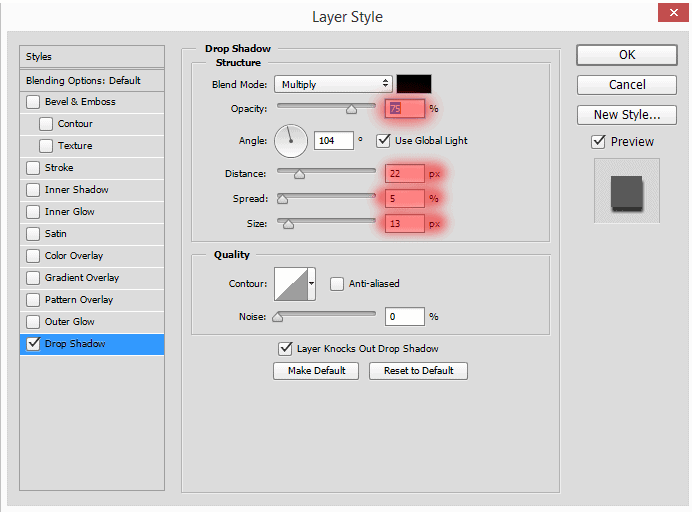
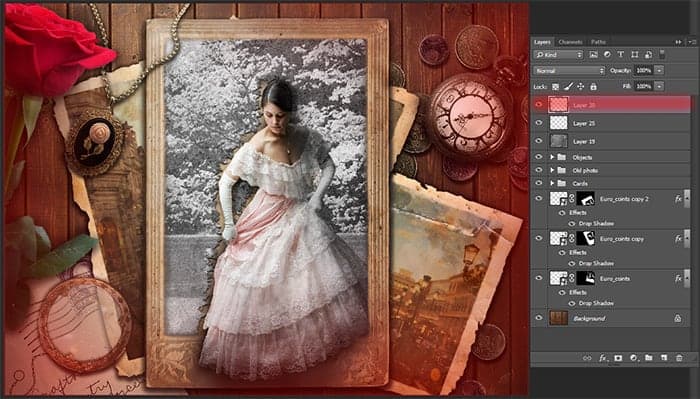
Create New Overlay-neutral color layer ( or Cmd/Ctrl+ Shift+ N with such settings: Mode: Overlay, set check box on “Fill with Overlay-neutral color (50% gray)”) at the top to all the other groups were beneath. Use the Burn Tool (O) and Dodge Tool (O) (Size 1000 – 150px, Exposure: 15% -20%) and apply shadows and light on frames and objects. Use large brush to little darken the lower right corner and lighten the upper left corner.
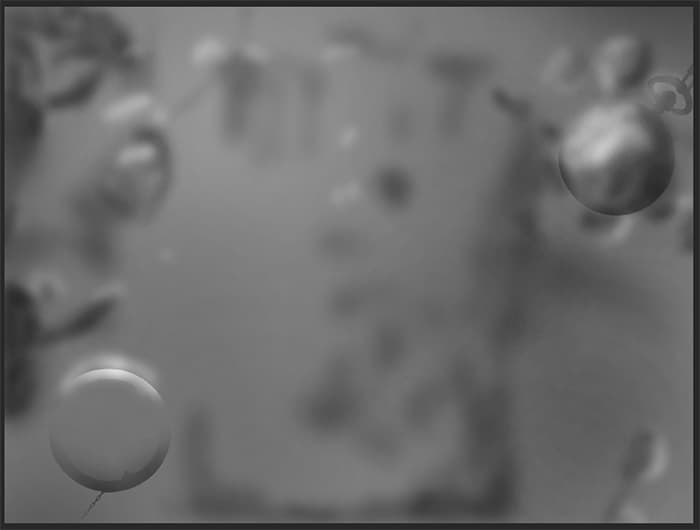
Making the shadow of the objects, so that the image looks more realistic. At this time, create a normal new layer and use Brush Tool (B) (Size: 150px, Opacity: 80%, Hardness: 0%). Draw the shadow under the clock and coins on the bottom. Also on the back side of the leaves and rosebud. Set Opacity: 50% to this layer.
Step 37
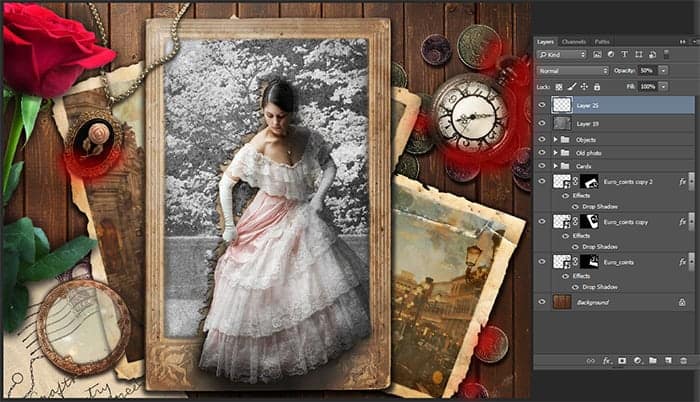
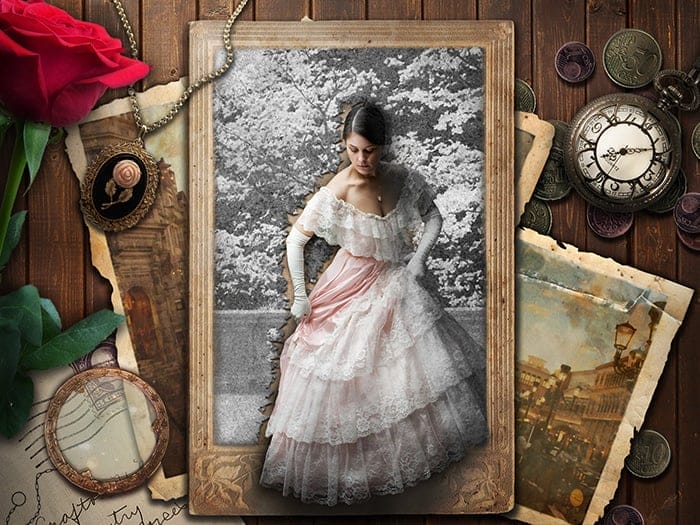
Now also create a new layer and use Brush Tool (B) (Size: 1200px, Opacity: 45%, Hardness: 0%) darken the edges of the image. Just do not overdo it! You have to impose only a hint and not a hard shadow. That’s it! The picture is completely ready! I hope you enjoyed it!
Final Results
Download the PSD
[vc_column width=”1/1″ el_position=”first last”] [vc_cta_button title=”Download” href=”https://downloads.photoshoptutorials.ws/Quietness.zip” color=”btn” size=”btn-large” icon=”none” target=”_self” position=”cta_align_right” call_text=”Quietness.zip | 297 MB” width=”1/1″ el_position=”first last”] [/vc_column]
Tutorial by Maria Semelevich
Thank you very much for taking the time to study this tutorial! I hope you benefited it! I wish all lucked in your future achievements! I thank the authors of resources for their excellent work and good quality! Thank you very much! If you have questions or need help, please contact me. I look forward to your feedback and creative works! You can contact me by e-mail – [email protected] or Facebook Deviantart Behance. I am open to suggestions and cooperation! With best wishes!
– Maria Semelevich.
End of tutorial