
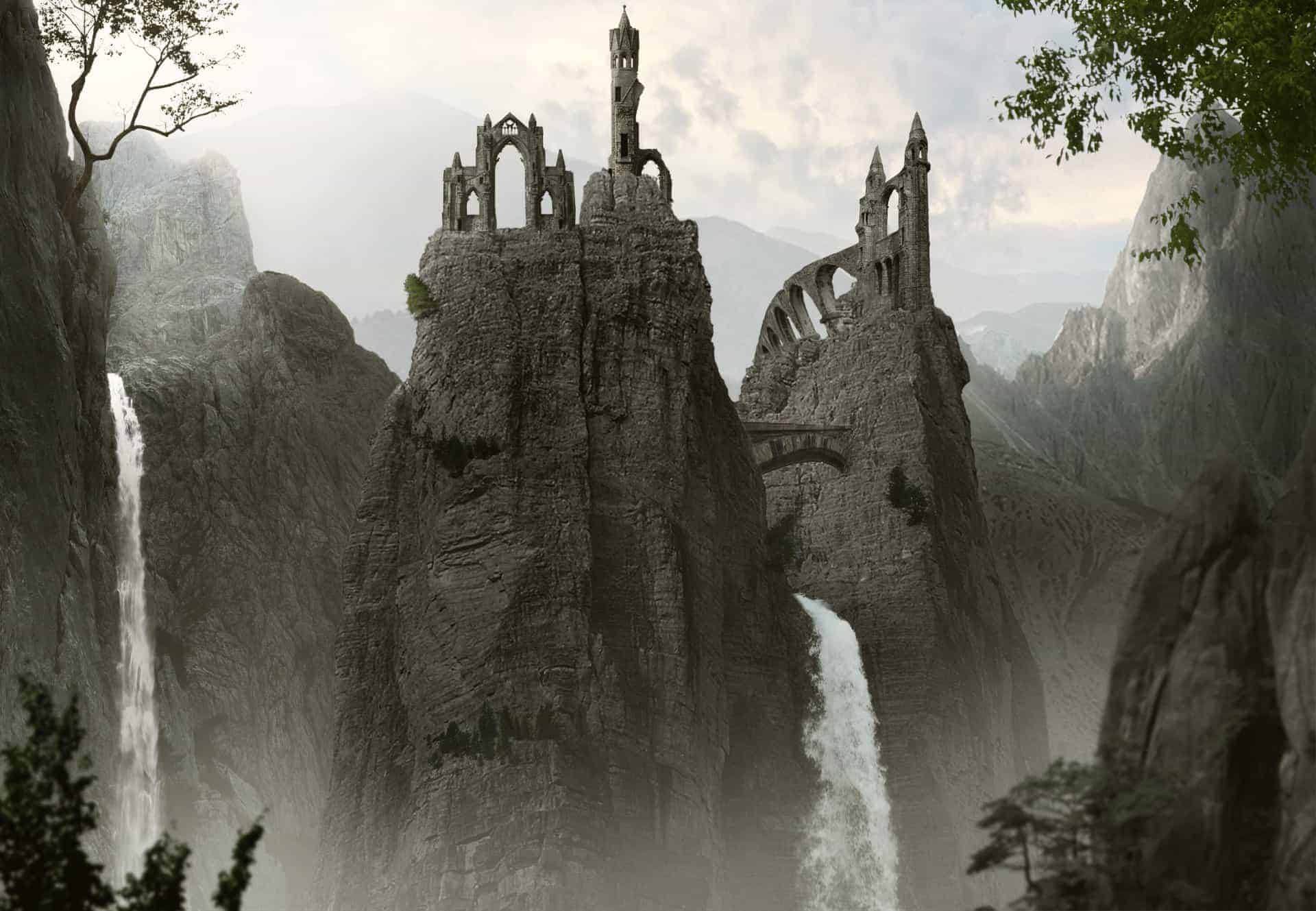


Step 26
I add three new adjustment layers (Hue/Saturation, Color Balance, Curves) to change color and darken this ruin:

After darkening with Curves I use soft black brush to erase the left side as it gets more light than the right:

Step 27
Open ruin 2 stock. I take only the right part and place it on the top of mid rocks, beside the ruin 1 and remove the bottom with layer mask:


Step 28
To change color and brightness of this ruin, I use Hue/Saturation, Color Balance and Curves:

Erase the left side on Curves layer mask to make this brighter than the right:

Step 29
Do the same with ruin 3. I place it at the top left of mid rocks:


Step 30
Make a new layer with same settings in step 12. I use Burn Tool to darken the right side a little:

Step 31
I extract a part from arch 2 stock, convert to Smart Object and position it beside the ruin 3. I set this layer under ruin 3 one. Then I use Warp Tool to bend it as shown below and use layer mask to remove unwanted parts


Because it’s converted to Smart Object so you can tweak it freely without losing quality and even can turn it into original form later.
Create some adjustment layers for this arch:


Step 32
Create a new layer on the top. Change brush to mist ones and set foreground to . I choose the brush below to paint at the bottom of our picture:

Lower opacity to 80% and use layer mask to reduce mist intensity between the rocks. You can see how I masked it on layer mask:


Duplicate this layer and lower opacity to 50%. Mask it to get the result below:

Step 33
Extract bottom right rock and add it to the right edge of foreground after making it as a Smart Object:

Use layer mask to remove a small tree on the top of this rock:

Step 34
I use two adjustment layers to revise color and darken this rock:
Hue/Saturation:

Curves:


Step 35
To create some depth for our picture, on this rock layer, go to Filter-Blur-Gaussian Blur and apply radius as 2,5 px:

Step 36
Extract tree 2 stock and put it into the hole of left rock:

Now use layer mask to remove its bottom and create a look of the tree growing from the hole:

I use Curves to darken the tree:


