
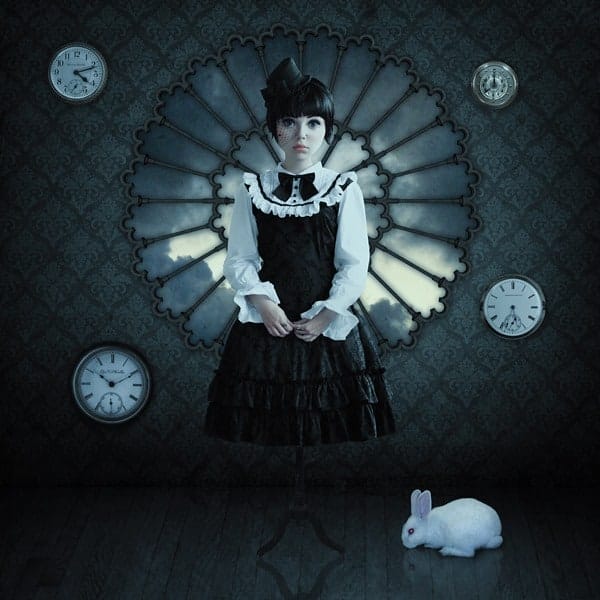


Step 34
Now go back to the model’s layer and select the skirt with the Marquee Tool.

Go to and make the skirt more puffy by pulling it outwards.

Puffy skirt.

Step 35
Grab the Burn Tool, set it on low Exposure (20%) and burn the areas marked with red.

Step 35
Go to the dress form layer (aka legs) and make it darker.

Click anywhere on the area around the form with the Magic Wand tool (W).

Go to . Expand by 1px, click OK. Hit Delete. Press Ctrl + D to release the selection.

Legs darkened.

Step 36
Go to the doll body layer. Go to and click on the dress so that the image in the black box turns partly white, bringing out the black areas. Move the sliders so that you get a bit different black hue.

Colours are matching better now.

Step 37
Go back to the legs layer and duplicate it. ().

Go to .

Now move them to the bottom so that the ends meet and set layer opacity to 50%.

Step 38
Take the other pattern and create this shape by duplicating the tiles and merging them together. Place the finished pattern on top of the model.

Set layer mode to Multiply.

Step 39
Go back to the model layer and click on the area around her with the Magic Wand Tool. Go back to the pattern layer. Hit Delete to get rid of excess pattern. Press Ctrl + D to release selection.

Step 40
While still on the pattern layer, take a hard round eraser and erase the pattern from her sleeves and hands.

Step 41
This is the dress with a nice pattern.

I lowered the opacity to 65%.

Step 42
Take this watch and reduce its size.

Cut off the top with the eraser, pen tool, lasso… whichever you prefer.

Watch without top.

Go to Hue/Saturation, but this time select “Yellows” from the drop down menu and move the Saturation and Lightness sliders all the way to left. Then lower Vibrance by -50.

Clock has now matching colours. However, it has a white border.

Step 43
Like with the legs, select area around the clock, go to Selection > Expand, but this time expand by 2px. Hit Delete. Press Ctrl + D to release selection.


