


Step 45
Grab the Custom shape tool. Click the gear button located on the custom shape list window, choose Web category. Click Append when the confirm dialog appear.

Step 46
Repeat Step 45 to load another custom shape, which is ‘Objects’ category.

Step 47
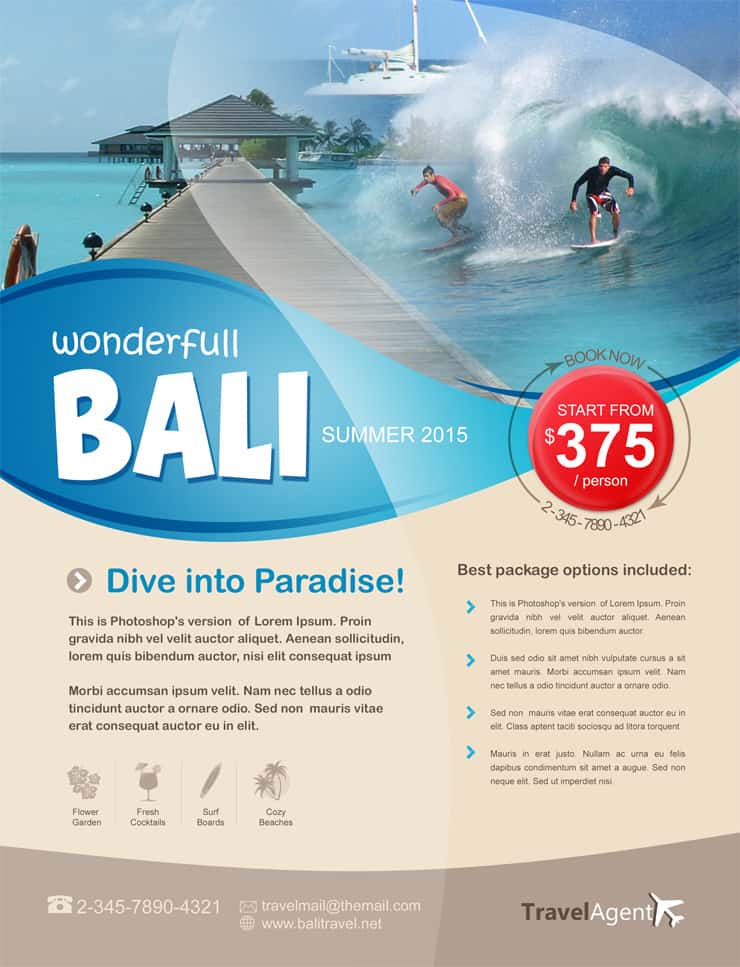
Write down some placeholder text for phone number, email and website for the travel agent. Add the phone, web and mail symbols using the Custom shape tool.

Step 48
Add placeholder text for the travel agent’s name.

Step 49
Grab the Custom Shape tool again, load another custom shape category “Symbols“.

Step 50
Select and draw the airplane shape. Set the color to white, and then place it at the right side of the travel agent text.

Step 51
To make it look more fancy, use the Drop Shadow layer style for the airplane shape. Follow Drop Shadow settings shown in the image below.

Step 52
As usual, group text and airplane layer to maintain order and also keep the layers panel look clean.

Step 53
Until this step, the flyer tempate doesn’t have a title yet. Let’s add them using a white bold text as shown in the image below.

Step 54
Use drop shadow layer style to make the title text look cooler. Tweak the drop shadow setting as you may see below.

Step 55
Click OK to apply the Drop Shadow layer style. If done correctly, the title text Draw a red circle () using the Ellipse tool. After doing that, type text “START FROM $375 / person” in four separate layer, adjust font size as needed. Back to the red circle layer, we need to tweak the appearance to look like a 3d button. Start with adding Inner Shadow layer style. Follow these setting for your reference: Inner Shadow Color: white, Blend mode: normal, Opacity: 28% and Distance: 33px. Add the Inner Glow layer style. Set the blend mode: Normal, Opacity: 9%, Color: Black, and size: 65px. Add the Satin Layer style. Set the blend mode to Normal, white as the color, decrease opacity to 19% and adjust Angle to 19 degrees. Don’t forget to set the Distance value around 23 pixels and Size about 46 pixels. Lastly, change the Contour to “ring” type.
Step 56

Step 57

Step 58

Step 59


